
My Ballistic Presets: What Is In Your Firearm Profile
Most shooters create their ballistic profile using an external ballistic calculator such as GeoBallistics or Hornady 4DOF, then import that trajectory into the LaserHIT app.
LaserHIT does not replace your ballistic calculator.
Instead, it acts as a training platform that uses the same DOPE data you already verified on the range.
Once imported, the preset becomes part of My Ballistic Presets, where it can be reviewed, edited, duplicated, or selected to drills.
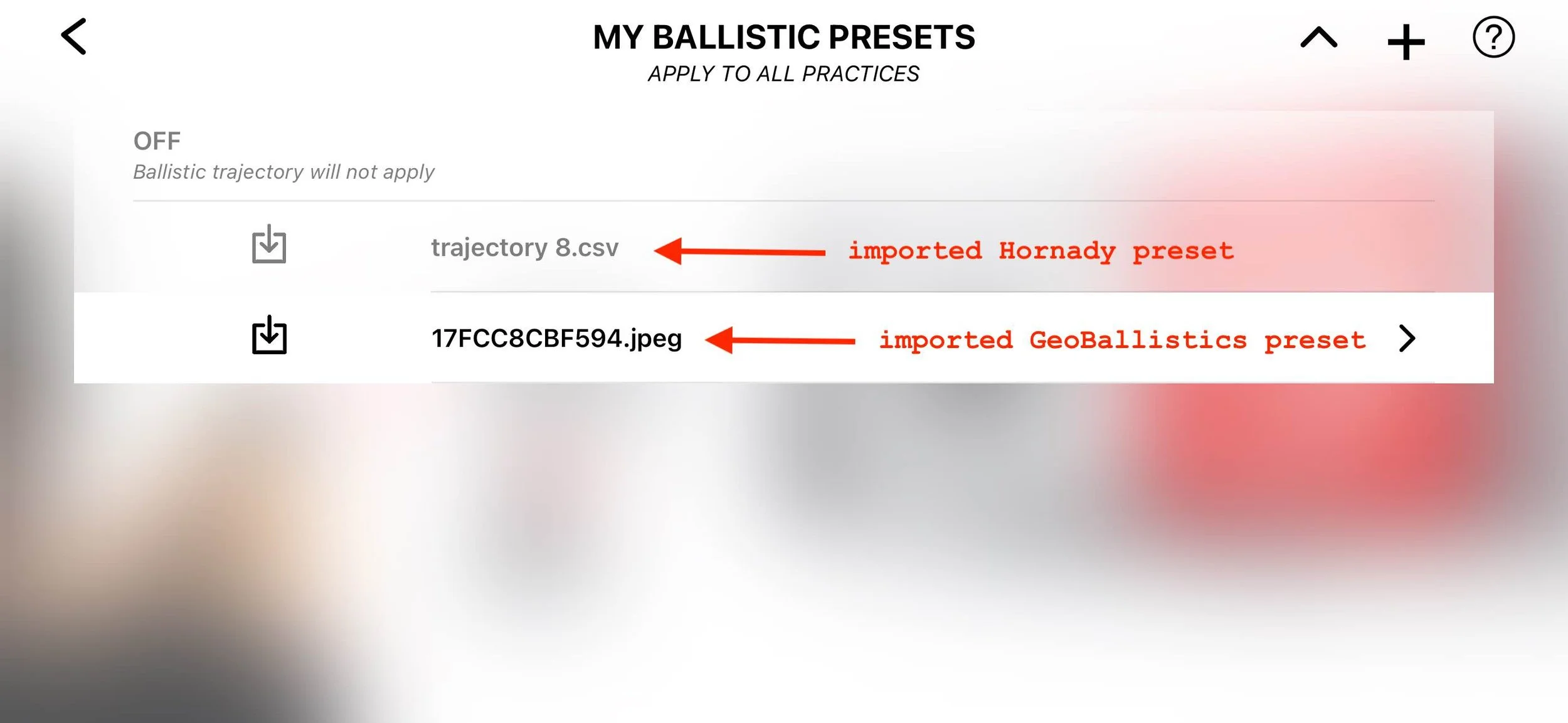
Step 1. Open My Ballistic Presets
Navigate to the ballistic preset library inside the LaserHIT app:
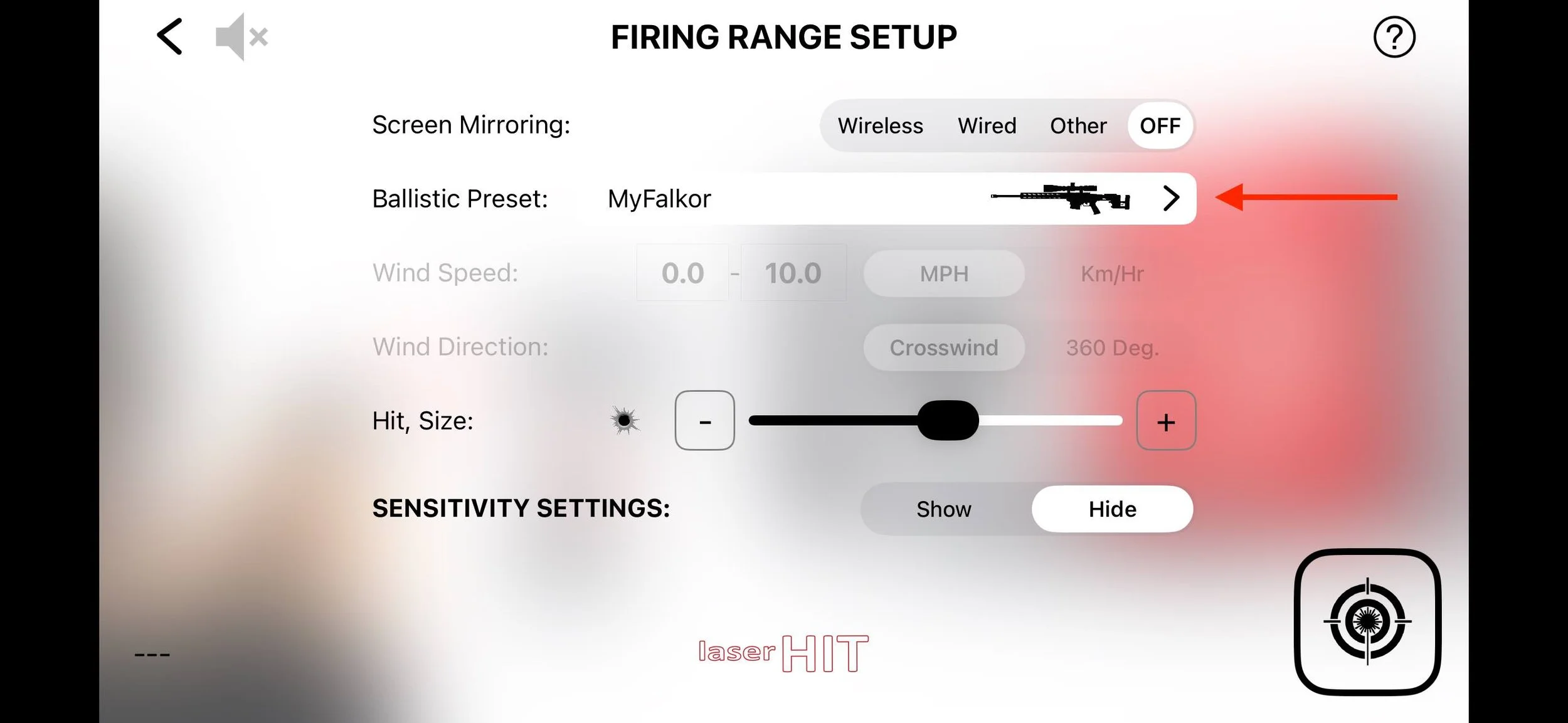
Drills -> Challenge -> KYL 500yd + Ballistic -> Firing Range Setup -> Ballistic Presets
Your imported presets appear in My Ballistic Presets.
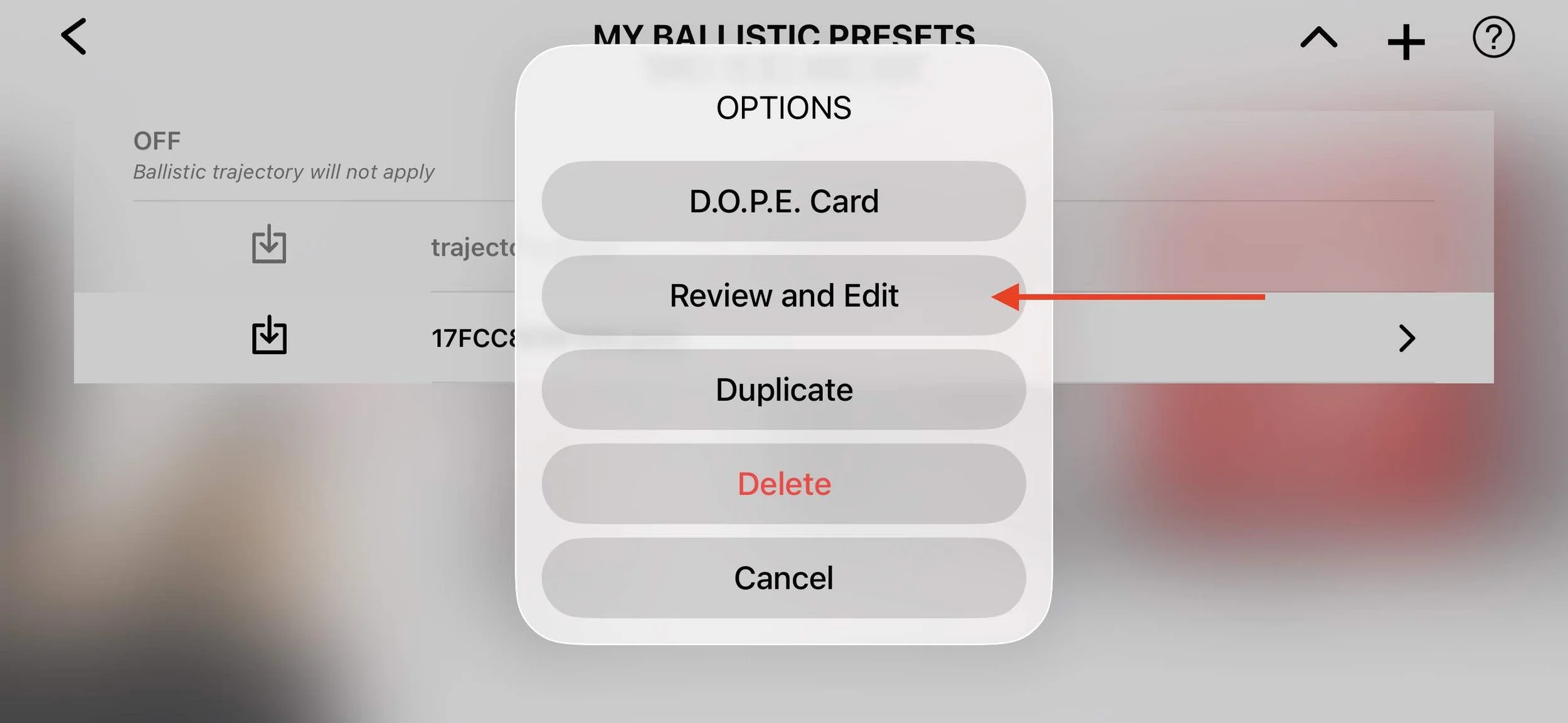
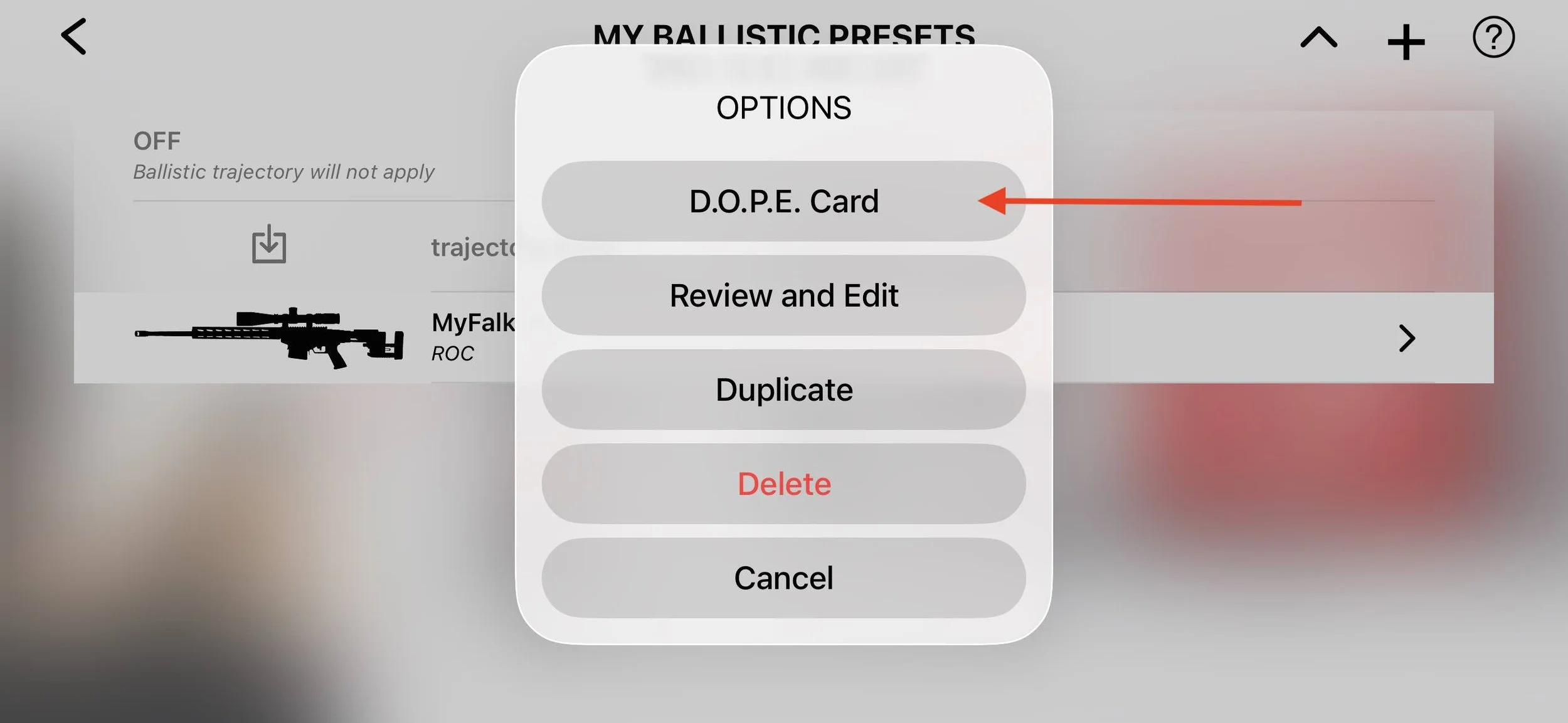
Tap the preset you want to customize and select Review and Edit.
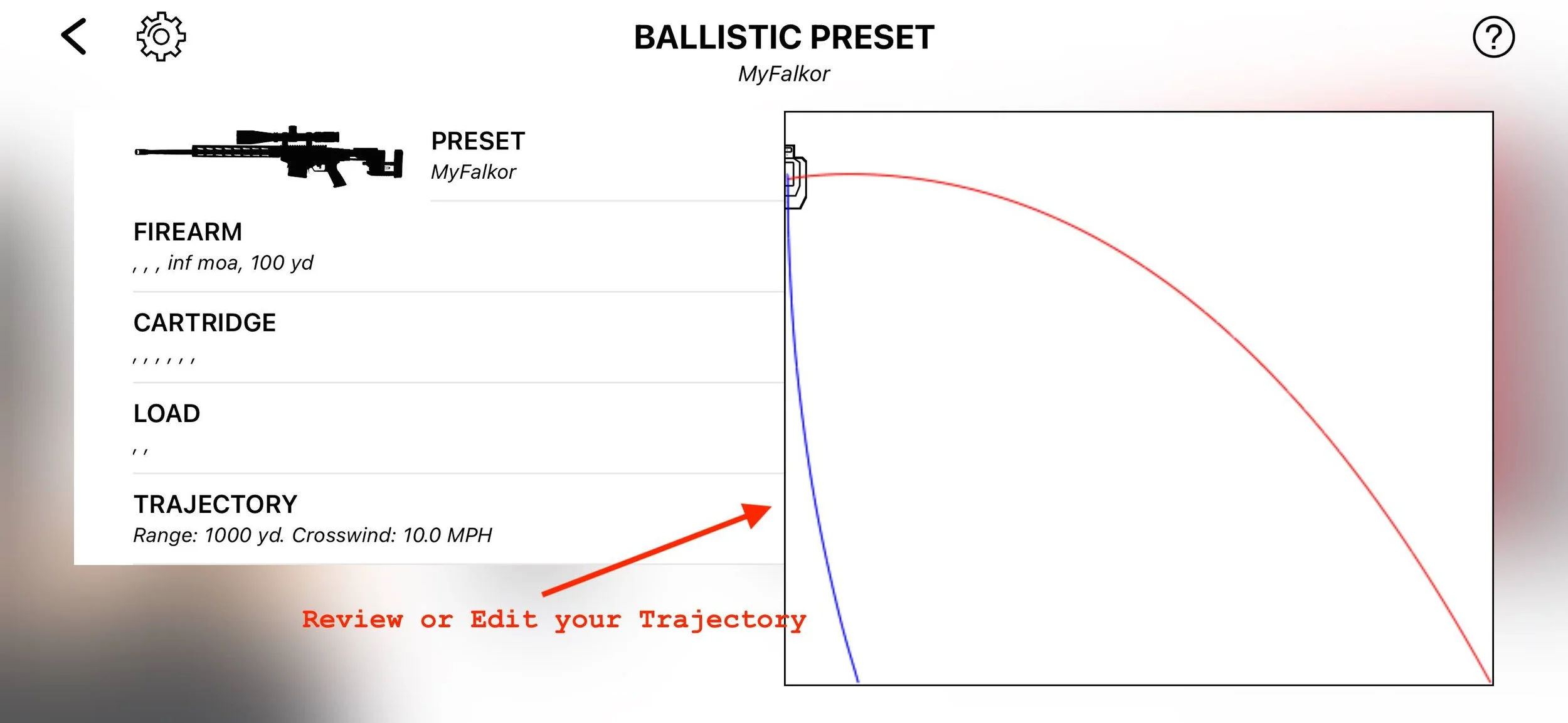
Step 2. Review the Ballistic Preset Profile
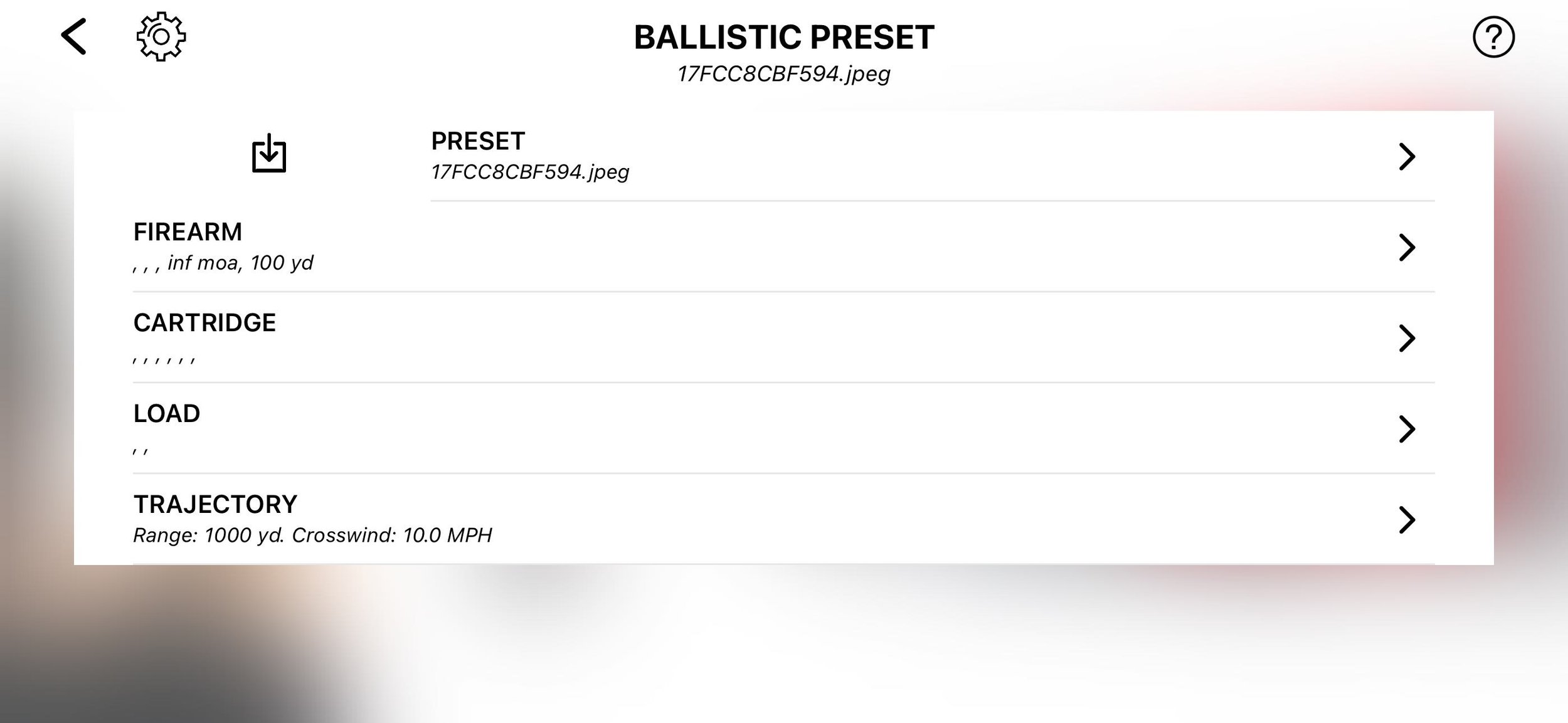
The preset profile screen contains several editable sections.
These include:
• Firearm details
• Cartridge information
• Load data
• Trajectory configuration
Step 3. Edit Firearm Information
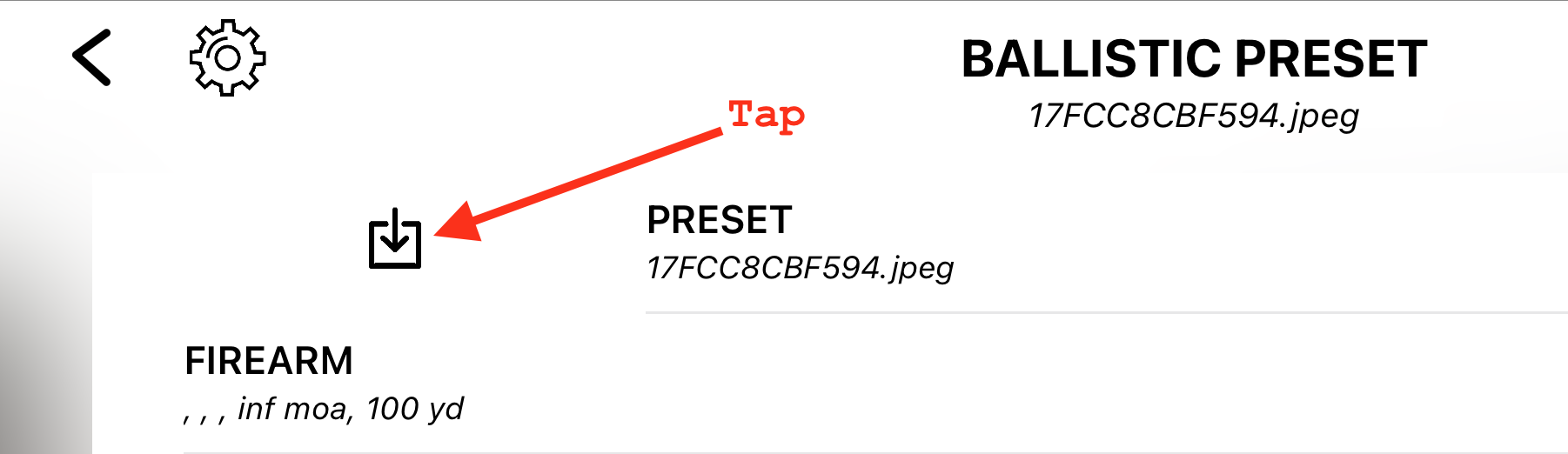
Typically, the first step is assigning an image to your preset and giving it a clear name.
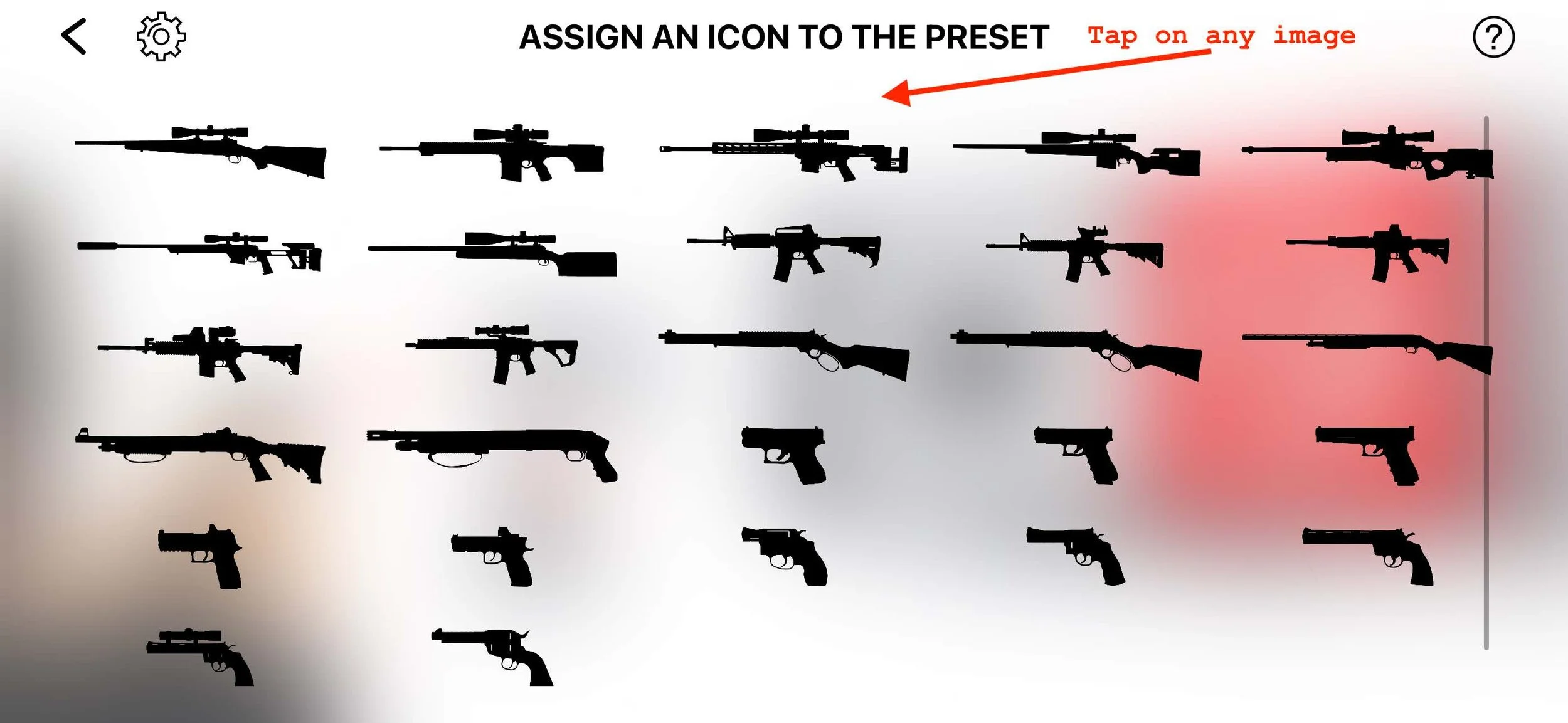
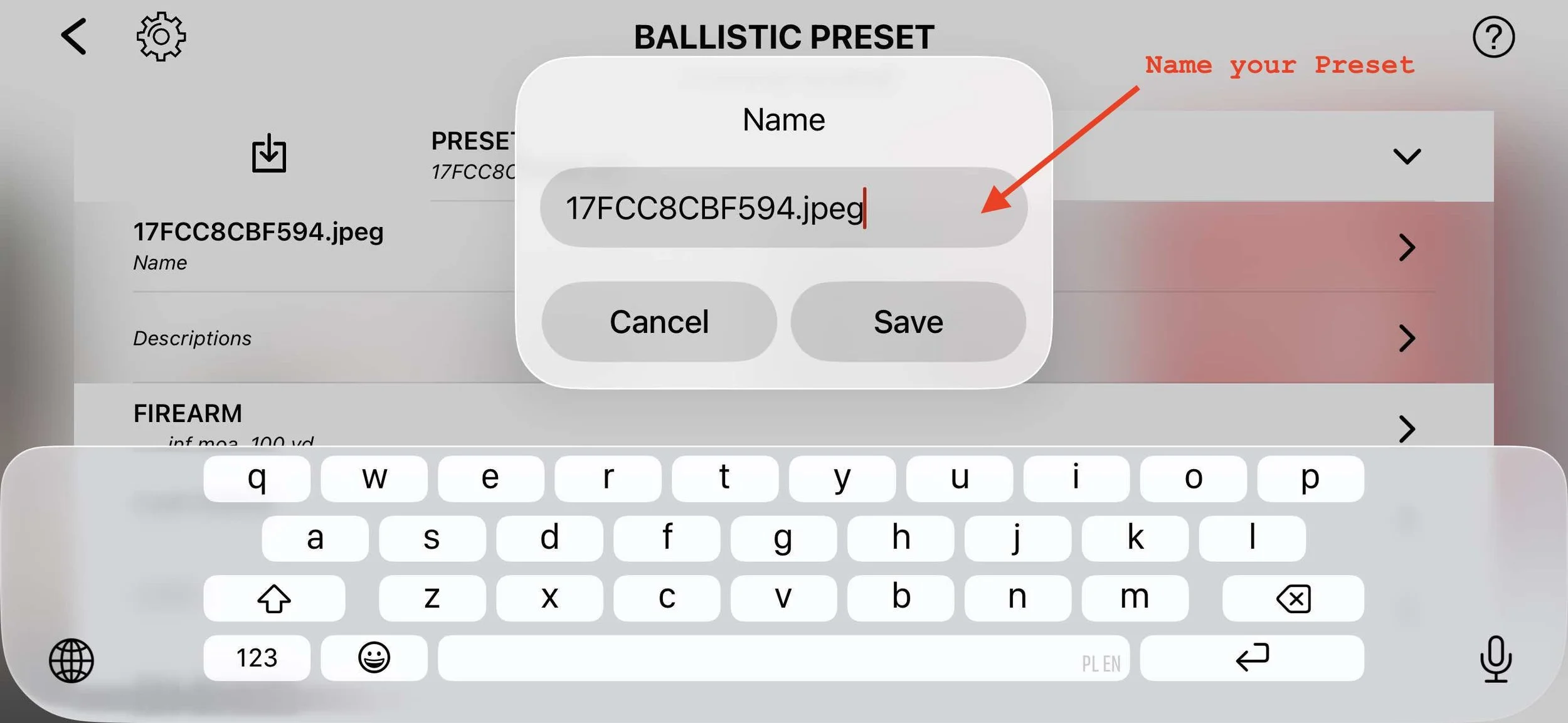
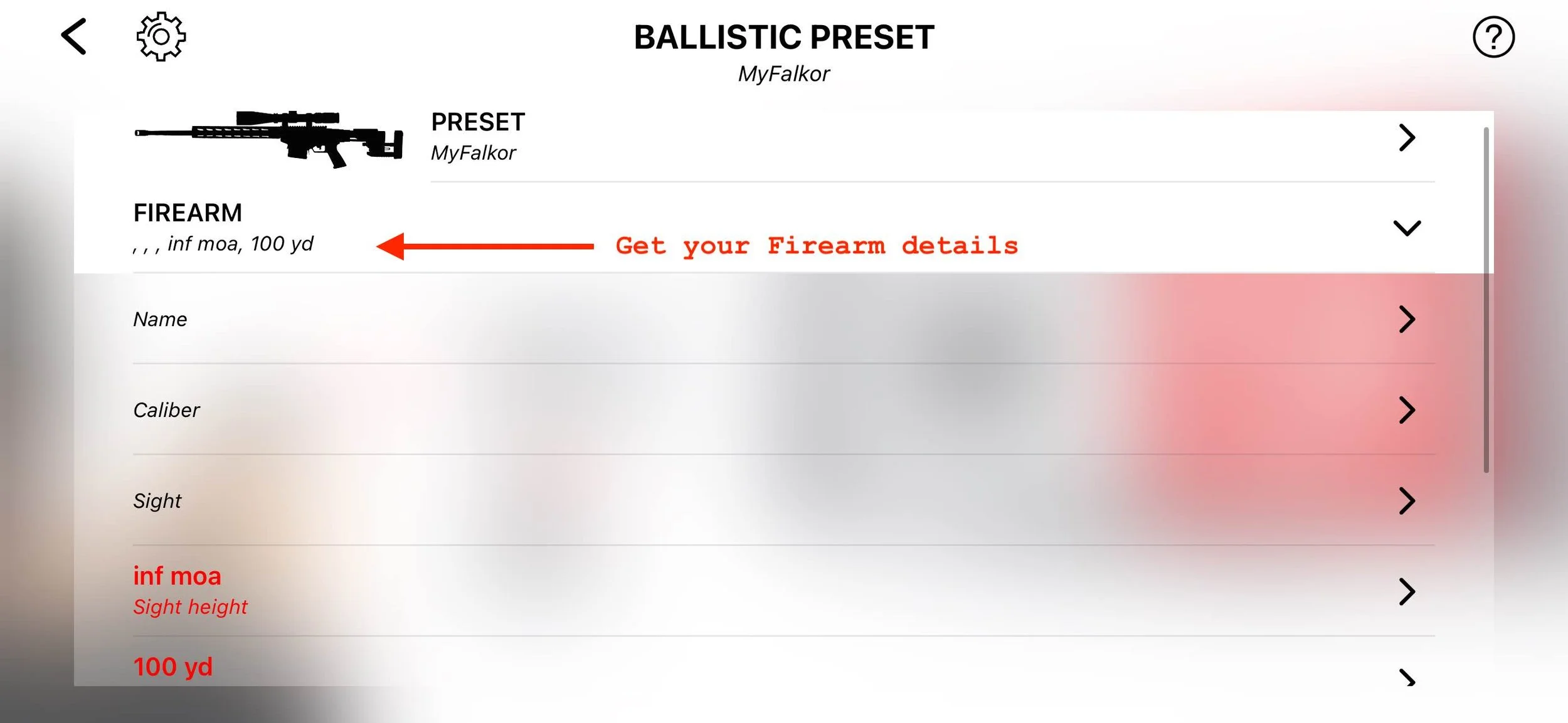
Next, open the Firearm section to review or update rifle parameters:
• firearm name
• caliber
• optic configuration
• sight height
• zero range
Sight height zeroing distance are especially important because it directly influences the trajectory calculation.
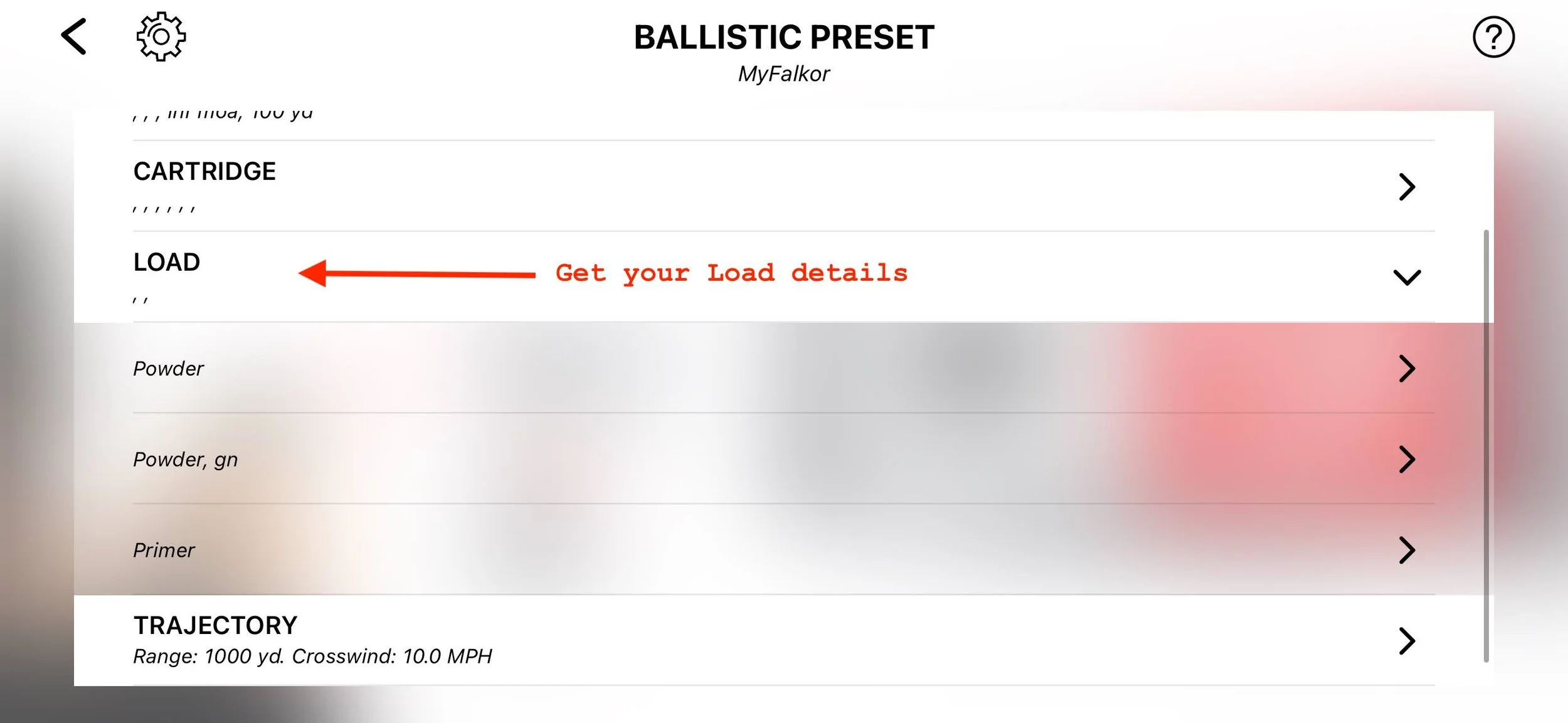
Step 4. Edit Load Information
Open the Load section to review ammunition details.
Typical fields include:
• powder type
• powder charge weight
• primer
These values help document the load configuration used when the DOPE chart was created.
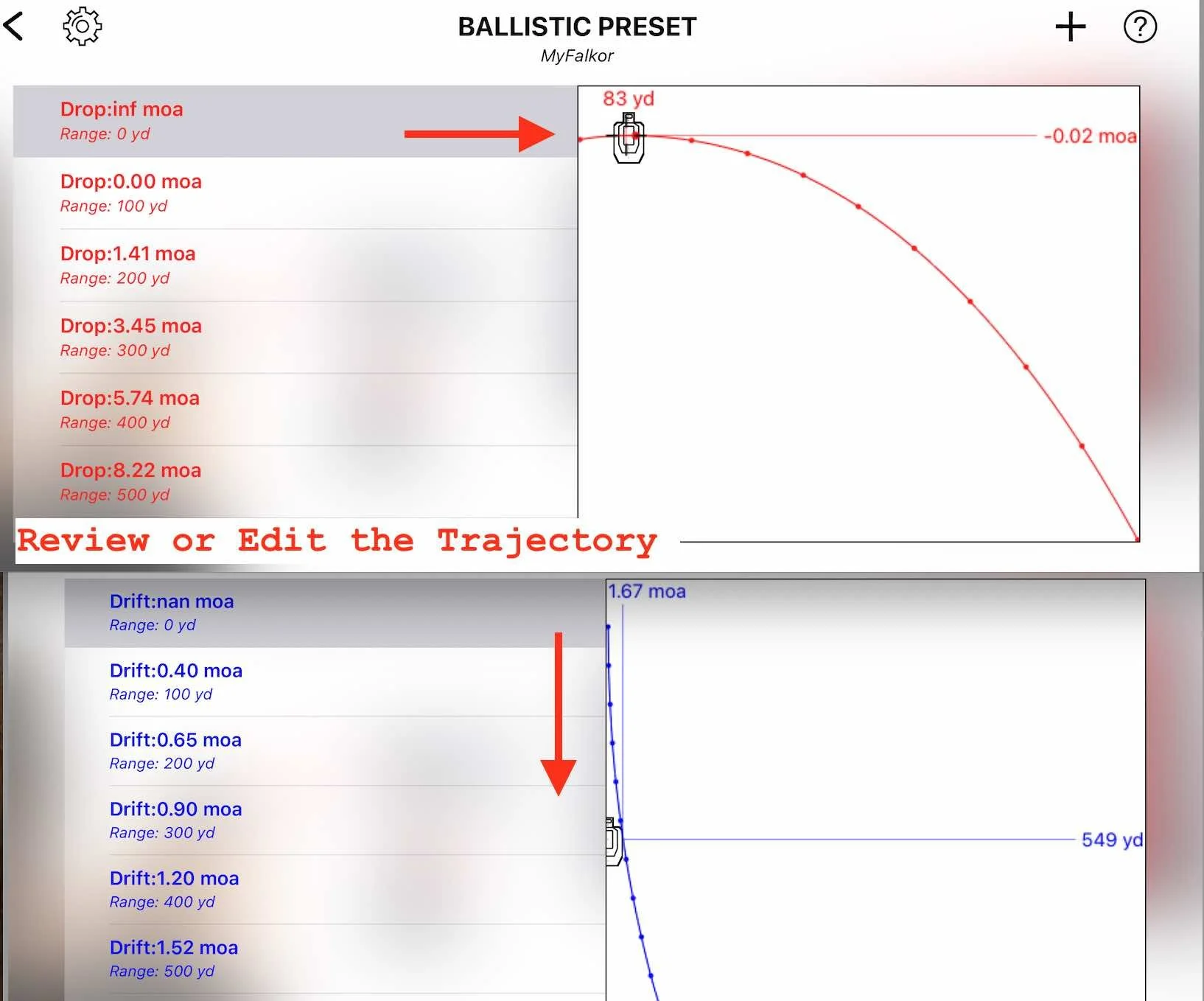
Step 5. Review or Edit the Trajectory
The Trajectory section shows the ballistic curve used by the preset.
You can review and edit the drop and drift values that were imported from your ballistic calculator.
Step 6. View the DOPE Card
From the preset options menu you can open the DOPE Card.
We recommend reviewing this data and noting the key values for your ballistic exercise, just as you would before a live-fire stage.
Typical information includes:
• firearm configuration
• caliber and ammunition
• range steps
• elevation drop
• wind drift at 10 mph crosswind
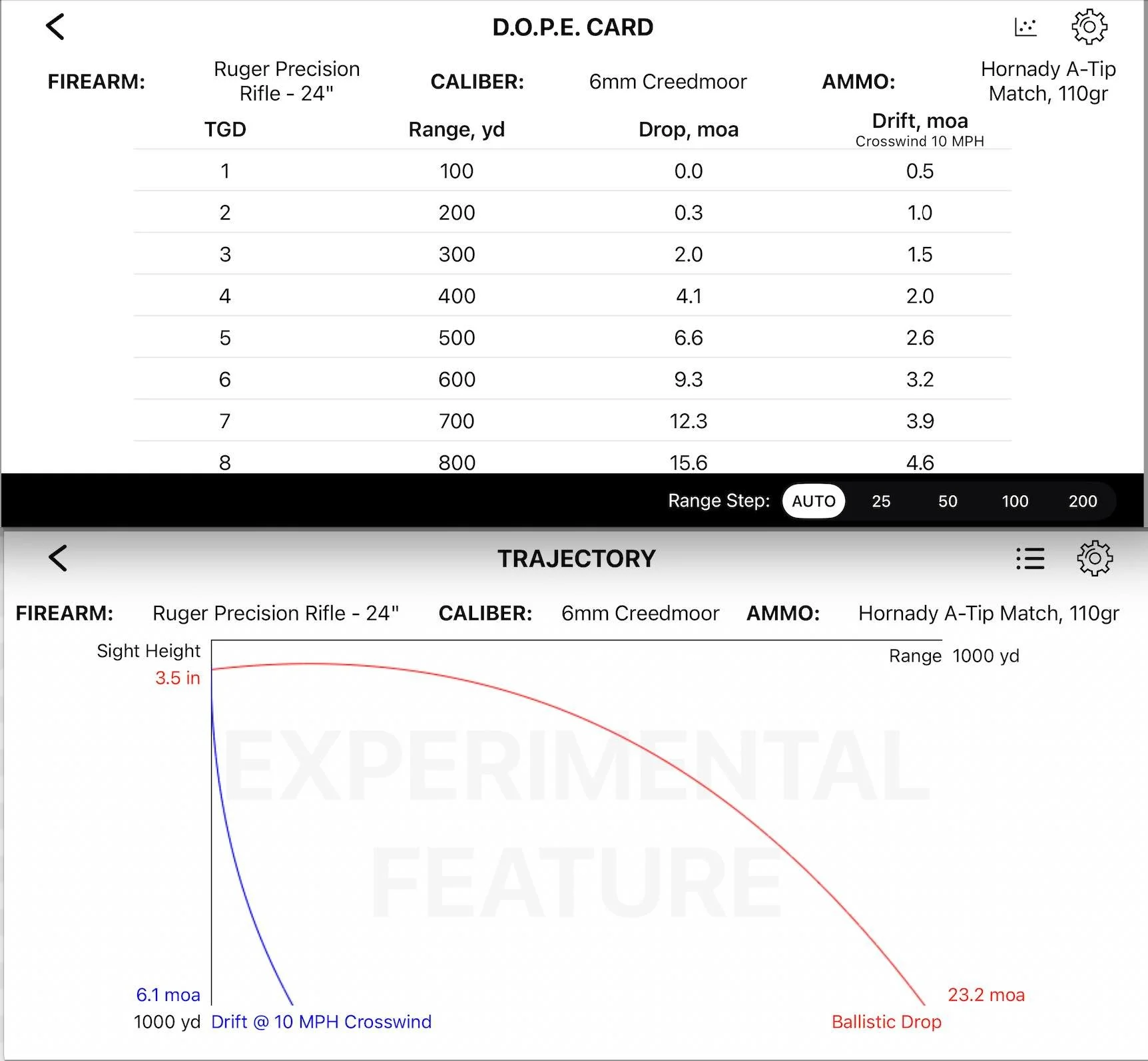
Sample of typical DOPE card.
Step 7. Use the Preset in a Drill
Once the preset is configured, it can be used inside ballistic drills.
Why 10 mph Wind Is the Baseline
Most ballistic charts use a 10 mph crosswind as the standard reference.
This simplifies wind corrections in the field.
Example:
For every 6-shot stage in LaserHIT KYL 500 yd + Ballistic Drill, a crosswind from 0 to 10 mph is applied.
Drop = 6.5 TMOA
Drift at 10 mph = 2.5 TMOA
And the stage wind is 7.4 mph, the math is simple:
2.5 ÷ 10 × 7.4 = 1.85 TMOA
Privacy and Data Storage
LaserHIT was designed with a strict privacy-first architecture.
All ballistic presets, firearm profiles, and trajectory data are stored locally on your personal device. The LaserHIT app does not upload your ballistic profiles, rifle configurations, or DOPE charts to any cloud service.
LaserHIT does not collect, store, transmit, or access your ballistic data.
Your custom presets remain private and exist only on your device. They are not shared with third-party services, external servers, or with LaserHIT.
This means:
• your rifle profiles stay on your phone
• your ballistic data stays on your phone
• your training history stays on your phone
The LaserHIT app functions as a local training platform that uses your ballistic data without transmitting it outside your device.
Before You Go
Your ballistic preset defines the trajectory behavior of your rifle system.
LaserHIT indoor dry-fire practice follows the same ballistic logic used on the range.
It becomes a preparation exercise for real engagements, not just trigger control.