
How to Set Up LaserHIT Rifle Training on Android
Many shooters assume Android is a simplified version of the LaserHIT app. It isn't.
While Android does not currently simulate external ballistics, it provides the measurement tools needed to build repeatable precision rifle skills.
Using the correct Practice mode, you can create a repeatable indoor training environment that helps develop the skills every rifle shooter depends on.
The Android version of the LaserHIT app offers two free Advanced Practices designed specifically for rifle shooters who want measurable, repeatable indoor training. Both Practices support LaserHIT rifle targets and the HD/LR Laser Cartridge, but each is built around a different training objective.
FreeTarget Advanced
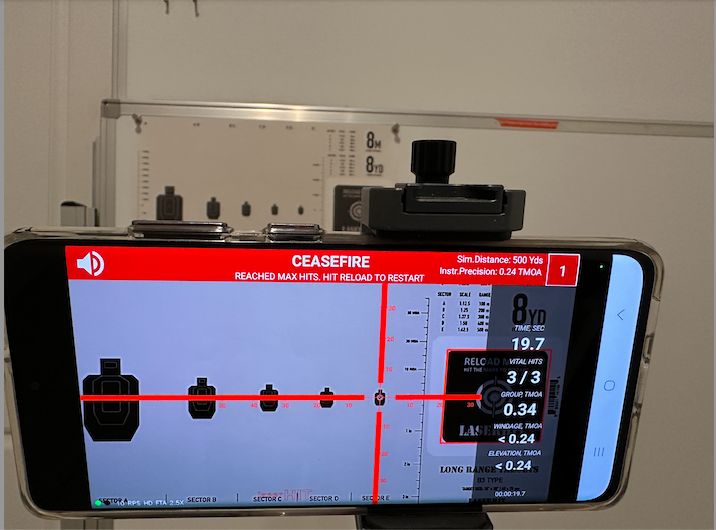
FreeTarget Advanced is the primary Practice for Accuracy rifle training.
Instead of following a predefined drill, you can turn nearly any target or object into a measurable intended Vital Zone. You decide what to practice while the app measures the results.
During Firing Range Setup, specify your actual firing distance, target scale, measurement units, and Vital Zone radius, which defines the area for your intended shots. Enable Hit Placement and Group display on the Results panel, then select your preferred Virtual Spotter announcements.
During Express Setup, drag the dynamic reticle overlay to the exact point of aim on the target. This establishes the reference point for all subsequent shot measurements.
We recommend beginning with LaserHIT Long Range Targets to become familiar with indoor long-range concepts and visually adapt to resized targets. Once you become comfortable with the system, you can create and use your own scaled DIY targets.
Before beginning the Practice, zoom the target and Reload Mark to fill as much of the phone screen as possible. Increasing the target size within the camera view improves the app's instrumental measurement precision.
When using targets with scales between 1:50 and 1:100, Digital Magnification can be enabled to examine shot placement in greater detail while maintaining the same measurement reference.
FreeTarget Advanced provides immediate visual and audible feedback after every detected shot, allowing you to verify adjustments as you train.
Black Steel Advanced
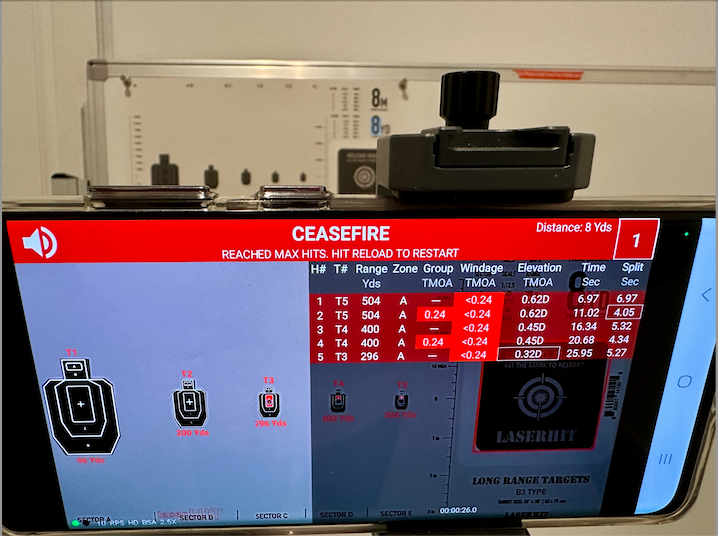
Black Steel Advanced uses the same measurement system but changes the training objective from Accuracy to Precision training.
You can use a single target or create multiple-target, multi-distance layouts using LaserHIT B3-style targets.
During the Practice, Black Steel Advanced provides immediate visual and audible feedback after every detected shot. Depending on your selected settings, the app can display shot sequence, target identification, number of hits on each target, shot placement, scoring zones, split times, elapsed time, and Virtual Spotter announcements.
Black Steel Advanced is an excellent choice when your training extends beyond producing a tight group. It allows you to combine precision marksmanship with target transitions, time management, and repeatable performance measurement while maintaining the same measurement accuracy used throughout the LaserHIT system.
As with FreeTarget Advanced, zoom the target area and Reload Mark to fill as much of the phone screen as practical. Most setup confirmations during Express Setup are performed automatically by the app.
Note: It is always a good practice to spend a few minutes watching the built-in tutorial before using a Practice for the first time.
Two Practices Build the Foundation of Long Range Training
Whether your goal is developing a better prone position, verifying your optic, refining trigger control, or building more consistent shot placement, these two Practices allow you to measure your performance instead of relying on assumptions.
Once you understand what each Practice is designed to accomplish, you're ready to build the physical training environment that allows those measurements to become meaningful.
The goal is not to imitate hundreds of yards inside a room. The goal is to recreate the same "common" aiming problem your optic and reticle solve outdoors, then measure your performance under controlled conditions.
What You Need
Before starting, prepare your complete training system:
• An Android phone or tablet with the LaserHIT app installed
• A LaserHIT HD/LR Laser Cartridge (or Custom Cartridge with an HD/LR Core)
• A LaserHIT Long Range Target
• Your unloaded rifle
• A stable target mounting surface
• Consistent indoor lighting
• A scope Focus Adapter and universal connection ring (depends on your Scope brand and configuration)
• A tripod with mount head for mobile device
• Firing Line positioning setup: bench, mat, tripod
Step 1. Prepare the Rifle, Scope, and Laser Cartridge
Always confirm the firearm is unloaded.
Remove all live ammunition from the training area.
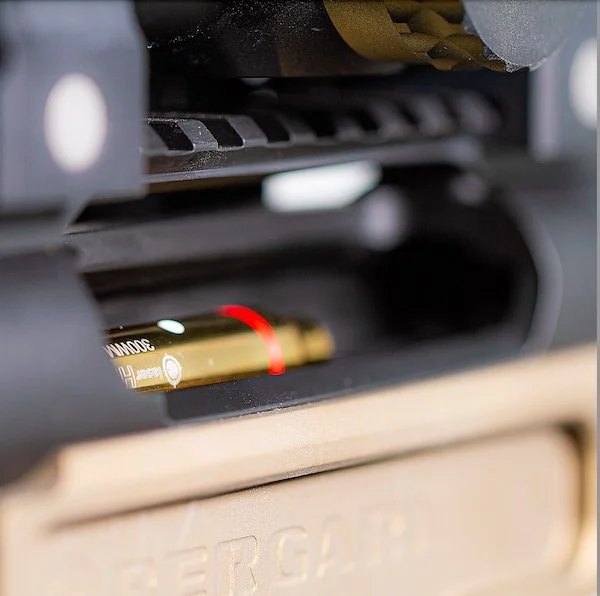
Before installing the laser cartridge, clean the rifle chamber and bore to remove excessive fouling, residue, or grease. A clean chamber helps the cartridge seat consistently and reduces unnecessary variation during setup.
Apply a very light amount of gun oil to the cartridge O-rings. This helps ensure smooth insertion and extraction while reducing O-ring wear over time.
A consistent loading position helps the cartridge seat in a repeatable orientation, reducing one more variable during setup.
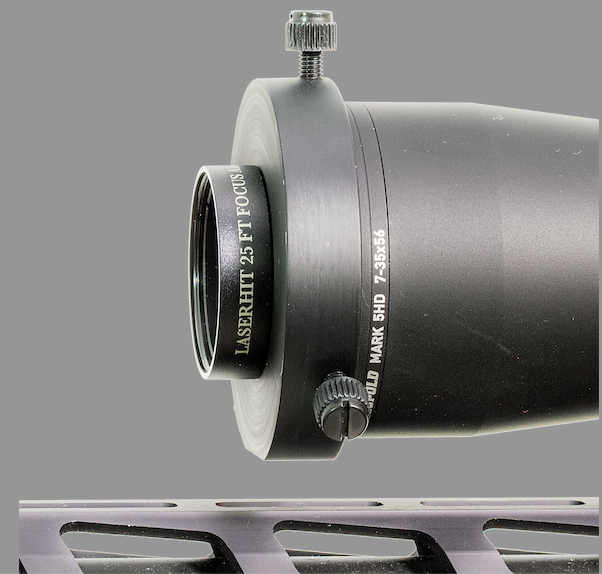
Assemble the tool-free Universal Connection Adapter Ring with the Scope Focus Adapter. This allows you to use your scope's magnification within limited indoor spaces and minimizing parallax shift.
Step 2. Mount the Target
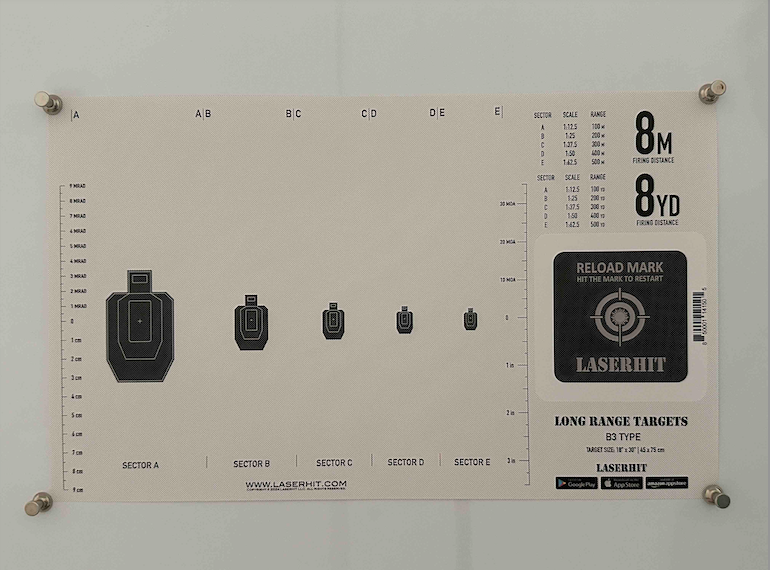
Everything that follows depends on a stable training environment.
Secure the target flat against a wall or other rigid surface using all four corners. The target should remain perfectly still throughout the entire training session.
When selecting the target location, avoid placing it on or near windows, mirrors, reflective surfaces, room fans.
Also avoid disturbances behind the firing line, including direct sunlight, moving shadows through the doors or windows, or ceiling fans with lights.
Choosing a stable location before beginning the setup helps eliminate unnecessary variables that can affect shot detection and measurement consistency.
Step 3. Establish the Firing Line
Select the firing distance recommended for your target scale.
Most LaserHIT Long Range Targets are designed around an 8-yard firing line, although some exercises use 4 or 16 yards depending on the simulated distance.
Measure the distance from your scope turret to the target rather than from the muzzle. Keeping this distance consistent allows future sessions to remain directly comparable.
Once established, treat the firing line as part of your measurement system.
Step 3.1. Verify Your Firing Line
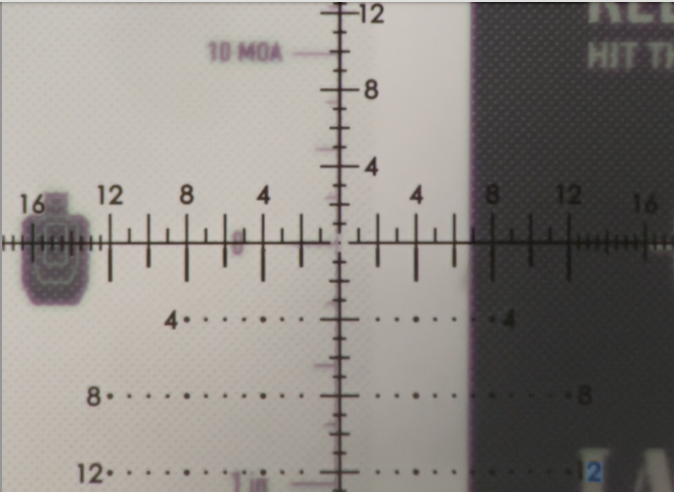
LaserHIT rifle targets include built-in MOA and MRAD reference scales that help verify your indoor setup before you begin training.
Looking through your rifle scope, compare the printed reference scales with your scope reticle. Proper alignment confirms that your actual firing-line distance matches the intended target setup.
Always measure the firing distance from your rifle scope turrets to the physical target surface, never to the phone, tablet, TV screen, target stand, or the wall behind the target.
Taking a few seconds to verify the setup helps ensure that your recreated distance and shot measurements remain consistent from one training session to the next.
Step 4. Establish a Temporary Indoor Zero - Laser Alignment
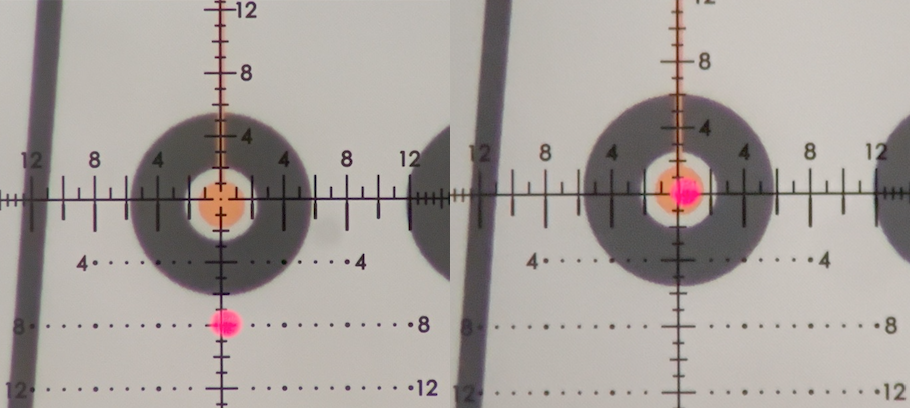
This step is unique to precision rifle training.
Your outdoor zero should remain exactly as it is. Instead of changing your confirmed live-fire zero, establish a temporary indoor zero for your current indoor setup.
Fire several shots while aiming at the center of the target.
Observe where the shots register. Because the firing line is established in a confined indoor space, the initial point of impact will typically appear well below the target center. This is expected and simply reflects the difference between your live-fire zero distance and the much shorter indoor firing distance.
Adjust the scope's elevation and windage until repeated shots consistently strike the intended point of aim.
Record your turret settings if you plan to use the same indoor setup again. Having a recorded indoor zero allows you to return to the same configuration quickly for future training sessions.
Remember that this temporary indoor zero depends on your rifle configuration, the cartridge's seating position, and your established firing line distance. If the cartridge is removed and reinserted, verify the zero before beginning your next session.
This temporary indoor zero is for indoor training only. Before returning to live-fire shooting, always restore your original turret settings or confirm your outdoor zero at the range.
Step 5. Open the LaserHIT App
It is now time to turn on your mobile device and open the LaserHIT app.
Select the correct laser cartridge type from the Main Menu. This is an important step that helps prevent unexpected laser response during active Practice. The laser behavior you observe depends on the cartridge type selected within the app.
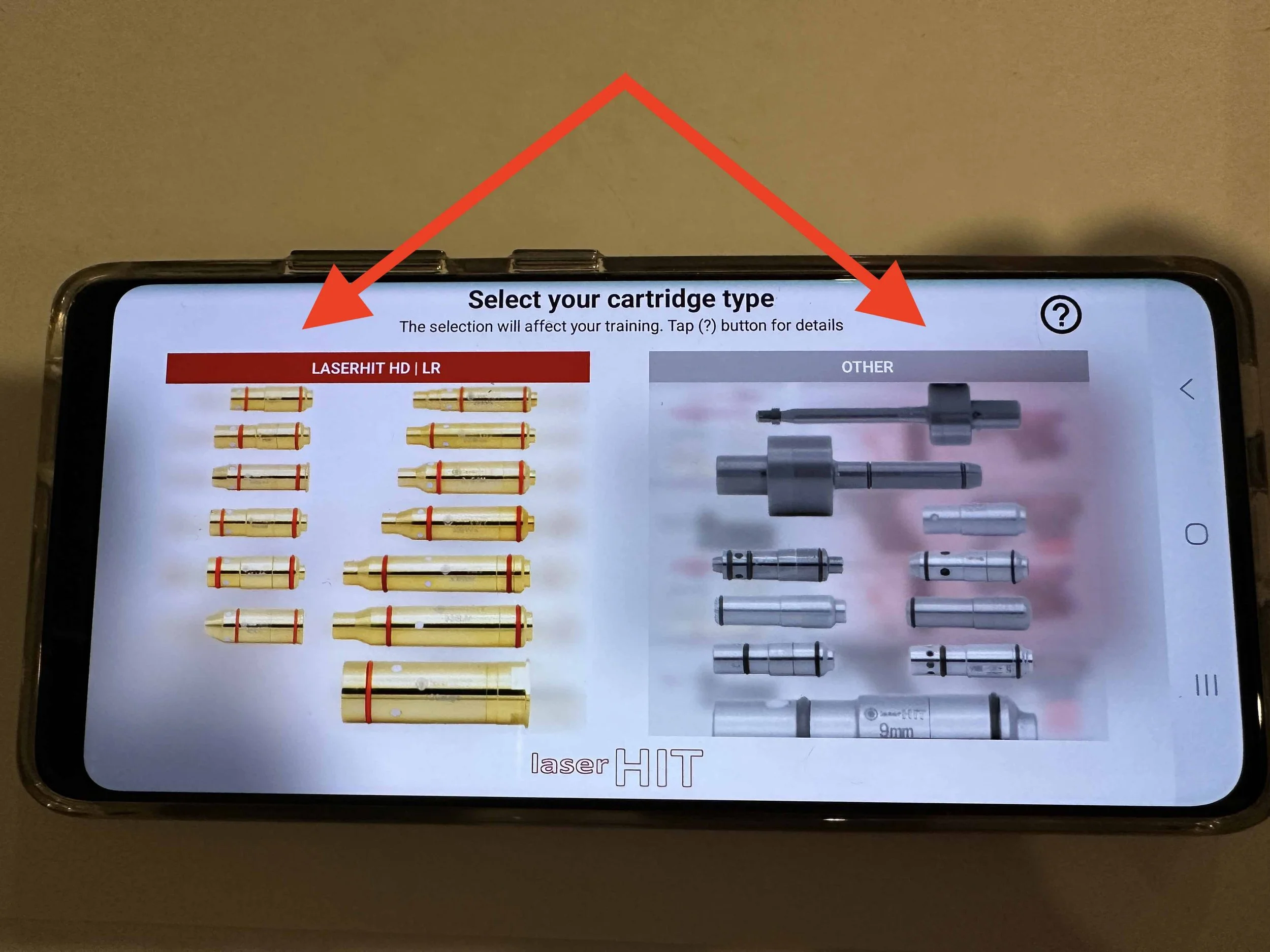
Select the Practice that matches your training objective, then open the Advanced tab.
On the Firing Range Setup screen, don't rush to tap Next. Take a moment to explore the available configuration options and customize the Practice to match your training goals.
Once the setup is complete, place your mobile device into the tripod phone mount with the rear camera facing the target.
Step 6. Position the Android Device
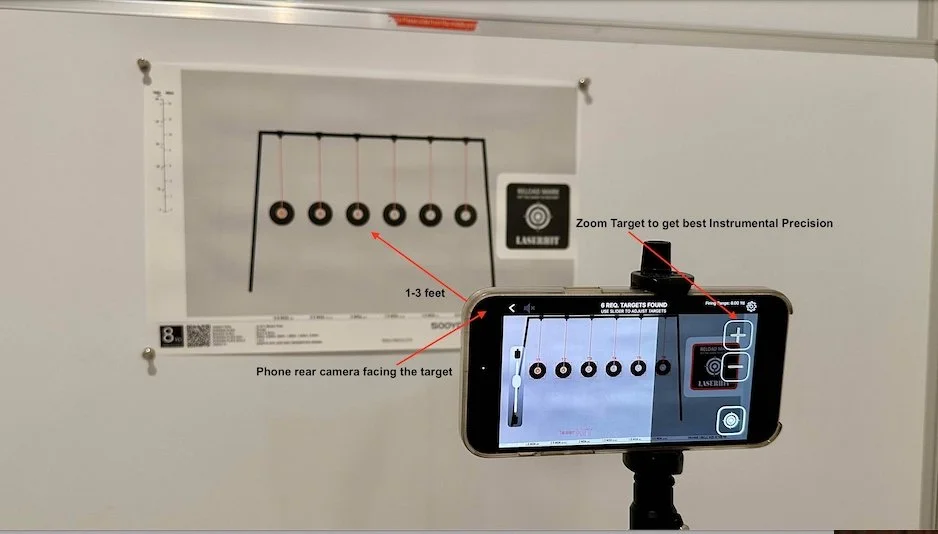
The LaserHIT app uses your Android device's rear camera to detect every laser pulse and calculate its point of impact on the selected target. Proper device positioning allows the app to provide consistent and repeatable shot measurements.
Position the device approximately 2 to 3 feet from the target.
For the most reliable detection, your Android device should remain in landscape (horizontal) orientation, and the rear camera should:
• Capture the entire target
• Include the Reload Mark
• Fill as much of the camera view with the target as practical
• Remain perpendicular to the target
Avoid excessive camera angle or perspective distortion.
A properly positioned camera improves both detection reliability and shot measurement precision.
Before proceeding to the active Practice screen, move to your firing line and confirm that the phone or tablet does not obstruct your scope's view of either the target or the Reload Mark.
Step 7. Complete Express Setup
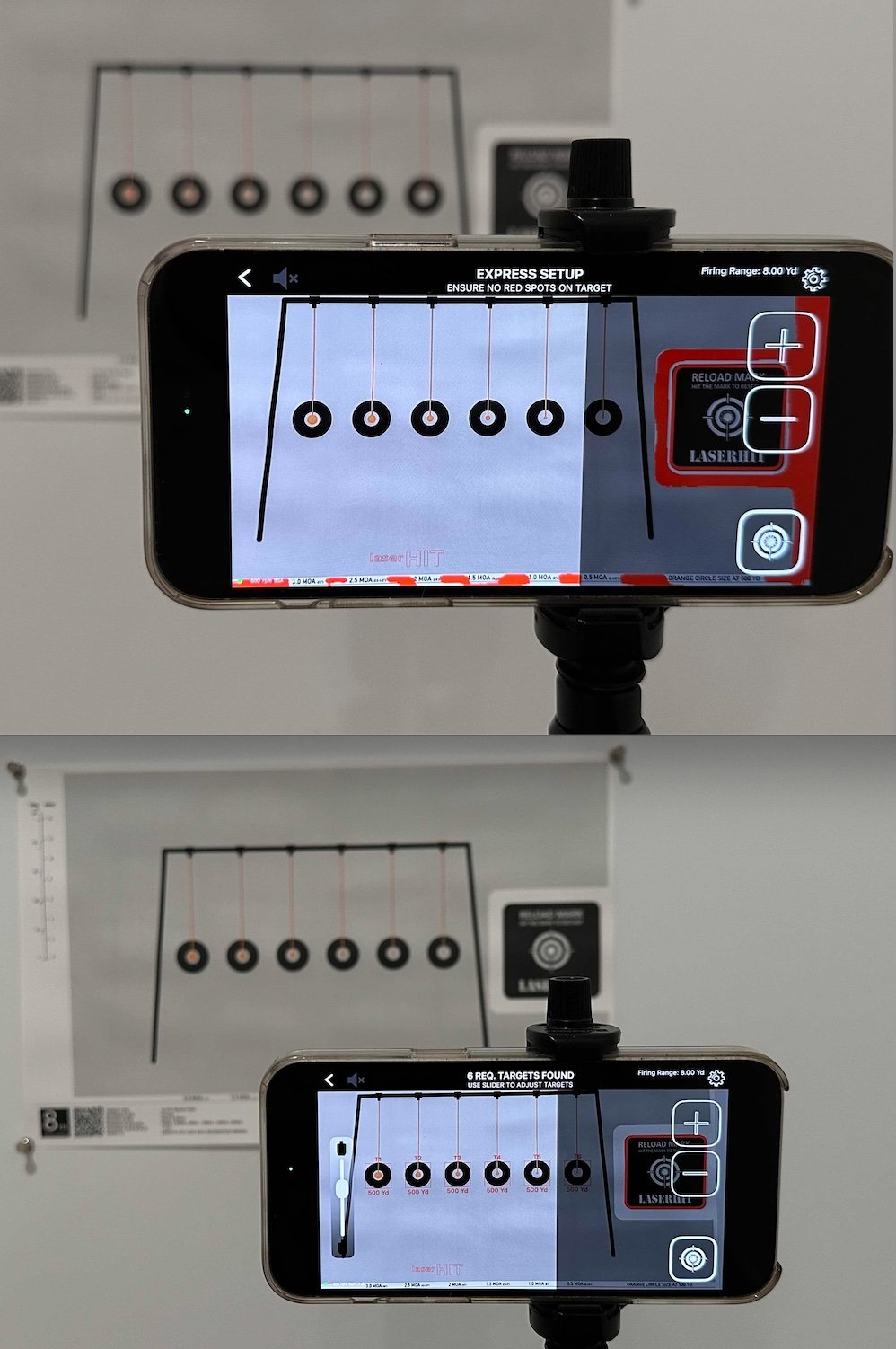
Before the Practice begins, the LaserHIT app guides you through a short Express Setup process to confirm that your training environment is ready.
On the first setup screen:
• adjust the camera zoom so the target and Reload Mark fill as much of the screen as practical
• confirm that the Reload Mark has been recognized
• follow any on-screen prompts related to lighting, target positioning, or camera alignment
The HD/LR Laser Cartridge produces a highly focused micro-dot that may be difficult to see with the naked eye. This is normal and does not affect the app's ability to detect the laser pulse.
The second setup screen depends on the selected Practice.
For FreeTarget Advanced, position the dynamic reticle and Vital Zone over your intended point of aim.
For Black Steel Advanced, review the detected target layout before proceeding to the Practice.
Once Express Setup is complete, the app automatically performs a brief Sound Test before the Practice begins. This process requires no user interaction and is completed automatically. When the test finishes, the Practice will begin.
Step 8. Understanding Active Practice States
The Status Panel at the top of the screen communicates the current state of the Practice session.
Green Panel – COMMENCE FIRING
• The Practice session is active.
• Camera stability and target recognition have been confirmed.
• Hit registration is enabled.
• Begin or continue firing.
Yellow Panel – GET READY
• The Practice countdown is in progress.
• Your device may still moving.
• Do not fire until the status changes to COMMENCE FIRING.
Black Panel – PAUSED
• The Practice session is temporarily paused.
• The app has detected movement of the phone, target, camera view, or surrounding environment.
• Hit registration is temporarily suspended.
Once the camera stabilizes and target recognition is restored, the Practice automatically returns to the active state and continues.
Red Panel – CEASE FIRE
• The current Practice session has ended.
• Hit registration is disabled.
• No additional shots will be recognized.
• This status typically appears when the Practice timer expires or the maximum number of shots for the selected drill has been reached.
To continue training, review your session results and hit the Reload Mark to begin a new Practice.
Step 9. Review the Results
The value of LaserHIT comes from measurement rather than simply detecting hits.
After each Practice session, review:
• Group Size
• Point of Impact
• Shot Consistency
Use these measurements to identify what improved and what still needs additional work.
Take a screenshot of your best sessions to build a personal history of your progress directly on your mobile device. Since all LaserHIT training data is stored locally, screenshots provide a simple way to preserve milestone achievements and compare performance over time.
Enhance Your Training Experience
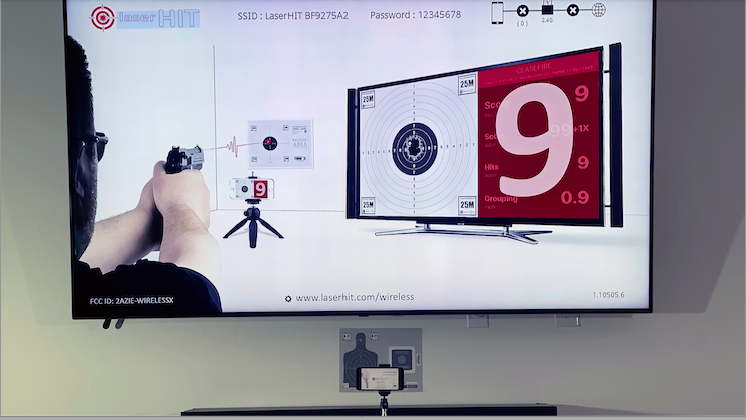
Once your setup is working reliably, you may want to make your training sessions even more comfortable and immersive.
For improved visibility, the LaserHIT app supports wireless screen sharing to a larger display, allowing you to view shot placement, scoring, and training results on a TV or monitor. The connection is established directly between your mobile device and the display without requiring an Internet connection.
For improved audibility, consider connecting an external speaker, wireless headphones, or electronic shooting hearing protection with Bluetooth connectivity. Many modern range hearing protectors support wireless audio streaming, allowing you to hear Virtual Spotter announcements and shot confirmations more clearly while maintaining the familiar experience of wearing hearing protection during practice.
These enhancements are optional but can make longer training sessions more comfortable and easier to follow.
Always aim and fire at the physical target, never at the phone or TV screen. LaserHIT displays the results digitally, but the target remains your point of aim. Keep it real.
Common Setup Problems
If shots are not being detected consistently, check the following first:
• Is the target fully visible on the Android device screen, filling as much of the display as practical?
• Is the Reload Mark fully visible and completely framed within the camera view?
• Is the camera positioned close enough to the target?
• Is the correct Laser Cartridge type selected?
• Have the lighting conditions changed?
• Has the cartridge been removed and reinserted?
• Does the temporary indoor zero need to be verified?
Most setup issues can be traced to one of these variables.
Before You Go
The Android version of LaserHIT focuses on the fundamentals that matter most.
Every measured shot, every verified adjustment, and every repeatable training session helps you better understand your rifle, your equipment, and your own performance.
Indoor training does not replace live-fire practice. Train with purpose and let the numbers tell the honest story. Every indoor session is another opportunity to build the confidence that your first shot on the next day at the range will land exactly where you intended.
We're here to back you up. Whenever you need us, we're just one email away.