
FOUR SHOOTERS. ONE PHONE. ONE LASERHIT APP.
ONE INSTRUCTOR. MULTIPLE STUDENTS. ONE SHARED PRACTICE.
Can four shooters practice simultaneously using one LaserHIT system?
We hear this question quite often from CCW instructors, law enforcement trainers, and firearms training professionals who want to bring LaserHIT into their classes.
The answer is YES.
You don't need four phones, four separate Apps, or four independent target setups.
With LaserHIT, you can organize four individual dry-fire training positions around one shared target board, using four identical scaled targets, one mobile device, and the FREE LaserHIT App.
Sounds interesting? Let's walk through a practical example, including actual measurements, App settings, and training ideas you can put to work in your next class.
FOUR SHOOTERS. ONE TRAINING AREA.
First, let's talk about space.
We're working in a controlled dry-fire environment, with no live ammunition permitted in the training area.
Unlike a conventional shooting range, we don't need the full physical distance to the targets. With scaled LaserHIT targets, instructors can recreate familiar handgun training distances of 5, 7.5, 10, or 15 yards within a much shorter indoor space.
The instructor decides how to arrange the training area based on the available space, students' skill levels, and the objectives of the class.
Now, establish a common firing line with four individual training positions.
Each student should have enough room for comfortable firearm handling, a safe muzzle direction, and instructor supervision. The exact spacing depends on the training activity, so there's no need to treat these positions as conventional live-fire lanes.
Before starting, remove all live ammunition from the training area, verify that every firearm is unloaded, and follow your established dry-fire safety procedures.
The four students share one target board, but each has an assigned target.
That's our starting point.
LET'S SET UP THE TARGET BOARD.
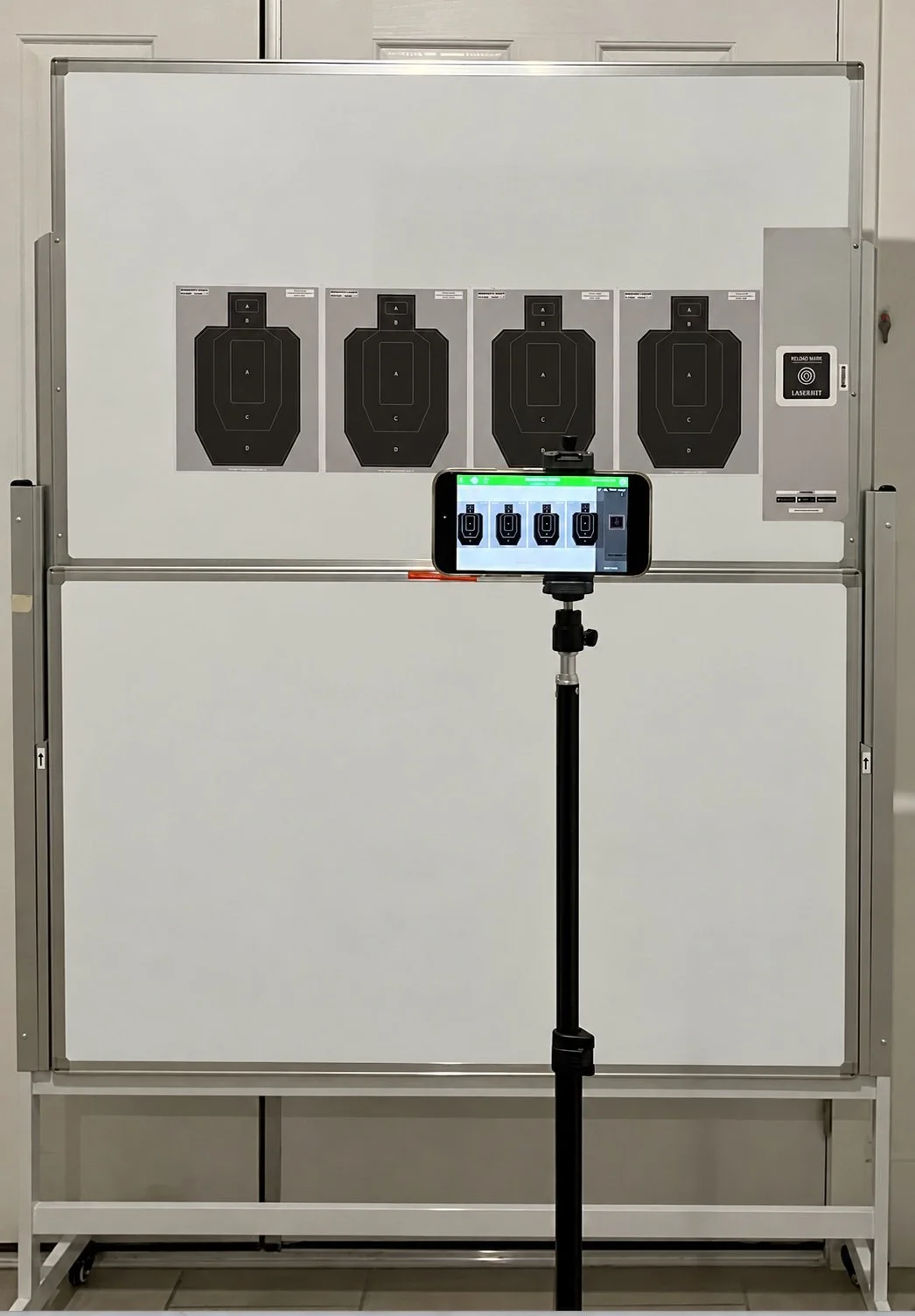
For this example, we're using a white board approximately 48 inches wide.
Here's what goes on it:
Targets: Four identical LaserHIT B3-style targets (A4-size format)
Target Scale: 1:3
Spacing Between Target Silhouettes: 2.5 inches
Reload/Reset Mark: One, positioned on the right side of the board
Total Target Arrangement Width: Approximately 40 inches
Assign one target to each shooter, from left to right.
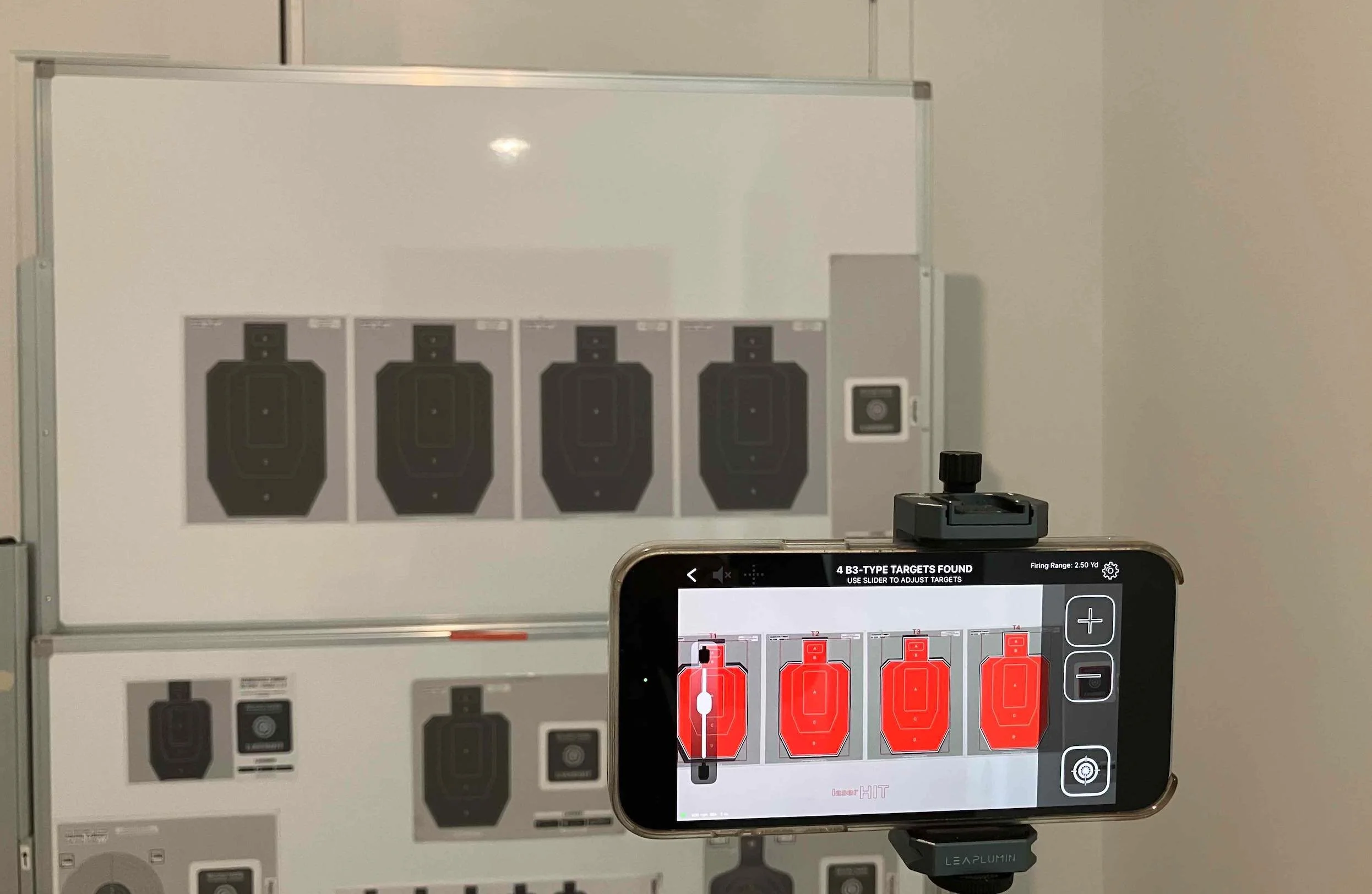
Keep all four targets and the complete Reload/Reset Mark visible within the phone camera's field of view.
That's important. One camera will monitor the entire board.
NOW, POSITION YOUR MOBILE DEVICE.
You don't need any special camera equipment. Use one compatible mobile phone mounted horizontally on a tripod with a phone holder.
Here are the measurements for our example:
Camera-to-Target Distance: 3.5–4 feet
Target Center Height: 54–56 inches above the floor
Camera Height: 51–53 inches above the floor
Indoor Lighting: 100–350 lux, evenly distributed
Phone Orientation: Horizontal
Camera Alignment: Centered between targets T2 and T3
Make sure the camera has a clear, unobstructed view of all four targets and the Reload/Reset Mark.
The goal is simple: one phone watching four targets.
WHAT ABOUT THE FIRING DISTANCE?
Here's another advantage of BLACK STEEL ADVANCED.
The LaserHIT App automatically detects multiple targets, recognizes their sizes, and calculates their recreated distances.
All you need to do is enter the actual indoor distance between your firing line and the targets in the Firing Distance field on the Firing Range Setup screen.
Let's take a familiar handgun training distance as an example.
You want your students to practice at a recreated distance of 7.5 yards.
Set your firing line 2.5 yards from the target board and use B3-style targets scaled to 1:3.
That's it.
Your students are physically standing 2.5 yards from the targets, but the scaled targets recreate the visual challenge of shooting at 7.5 yards.
Here are a few more possibilities:
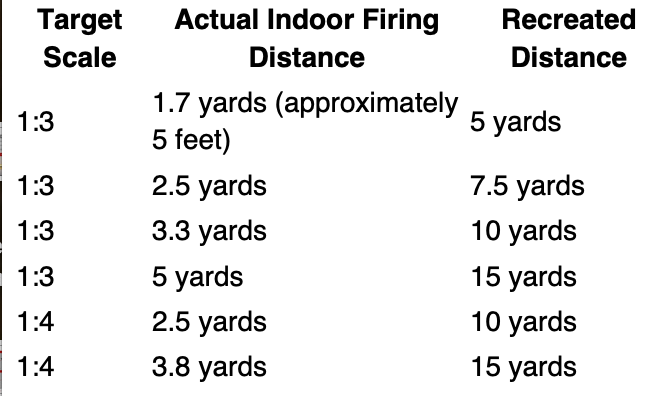
No complicated setup for your students.
As an instructor, you have the flexibility to customize each Practice to match your training objectives, your students' skill levels, and the available indoor space.
Want to change the challenge for your next class? Or introduce a different training objective during the same session?
Just spend a minute adjusting the Firing Range Setup options. No additional equipment, purchases, or fees are required.
You decide what to teach. LaserHIT gives you the flexibility to make it happen.
WHY DO WE SPECIFY LASERHIT HD CARTRIDGES?
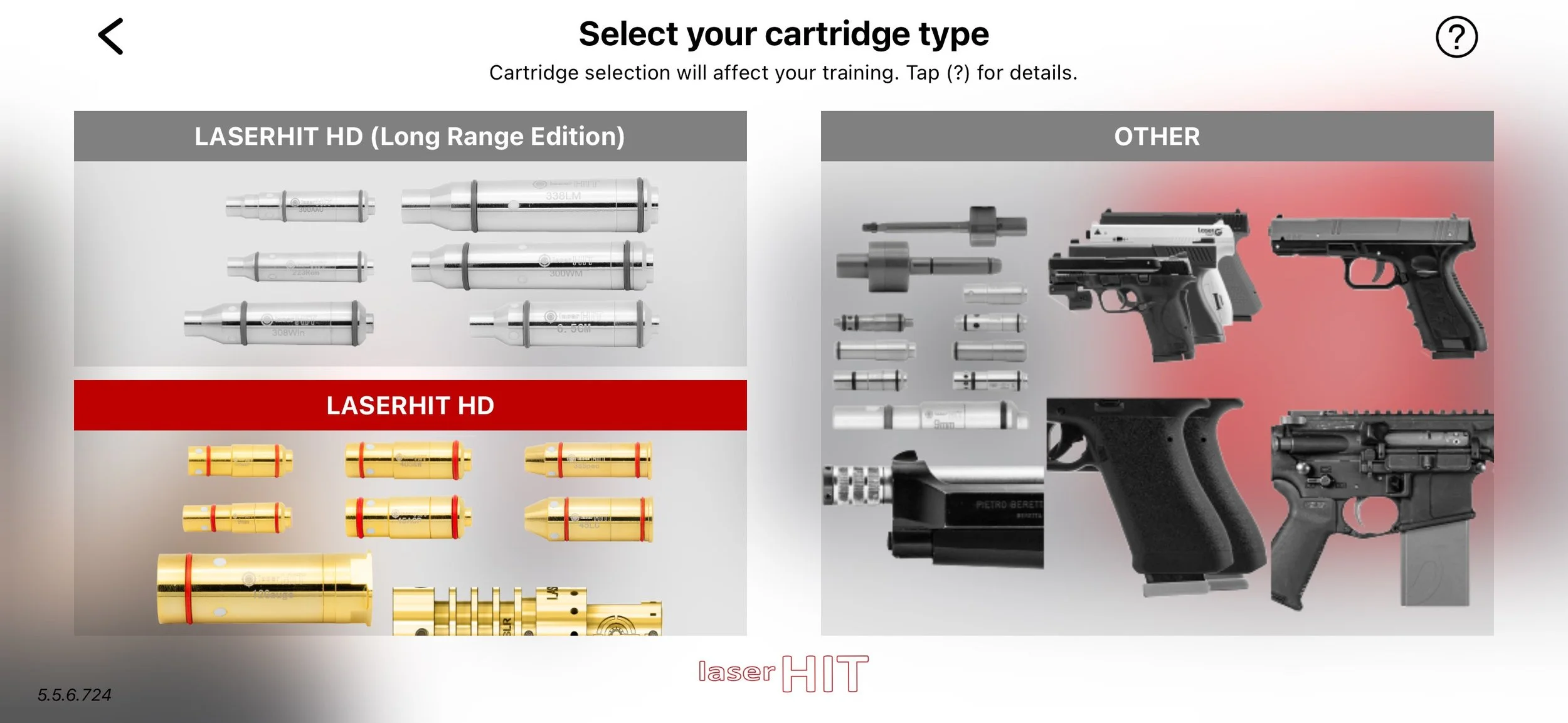
There is a technical reason.
When four shooters share one LaserHIT App, reliable shot registration becomes especially important. The system must recognize rapid laser signals, register individual shots, and preserve their sequence.
That's why we specify original LaserHIT HD laser cartridges for this configuration.
LaserHIT HD cartridges are designed to work with the LaserHIT App and support rapid laser activation at rates of up to 10 shots per second.
Although other brands, generic cartridges, and third-party laser training devices may look similar, their technical characteristics can differ significantly.
This isn't simply about promoting one cartridge over another. It's about matching the equipment to the technical demands of the exercise.
When you're training four students simultaneously, repeatability and reliable shot registration are essential. Double registrations and missed shots can compromise the value of the results.
Before starting the Practice, go to the Classic LaserHIT App -> Main Menu and select: Cartridge Type ->LaserHIT HD
Confirm that you're using an original LaserHIT HD cartridge.
BUT WHAT IF ALL FOUR SHOOTERS FIRE AT ONCE?
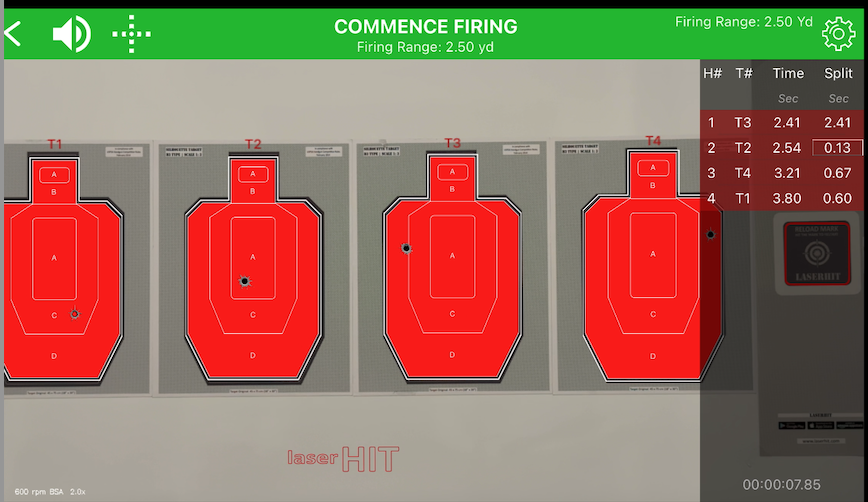
Good question. And probably one of the first things an experienced instructor will ask.
Let's consider what actually happens during a group Practice.
Four students hear the same starting signal. But do they all fire at precisely the same instant?
Not necessarily.
Think about familiar training exercises: starting from low ready, drawing from concealment, presenting a firearm from beneath a T-shirt, or working with the strong or weak hand.
Every shooter has a slightly different reaction time. Each takes a different amount of time to present the firearm, acquire the target, and press the trigger.
Even when everyone starts together, their shots will generally occur at slightly different moments.
That's important because LaserHIT registers individual laser events, associates them with the corresponding targets, and displays the shots in time sequence.
With original LaserHIT HD cartridges supporting rapid activation rates of up to 10 shots per second, the system is designed to handle fast shooting.
And we tested it.
The goal isn't to make four students pull their triggers at precisely the same millisecond.
It's to let four students participate in the same training exercise while one LaserHIT App records their performance.
LET'S OPEN THE LASERHIT APP.
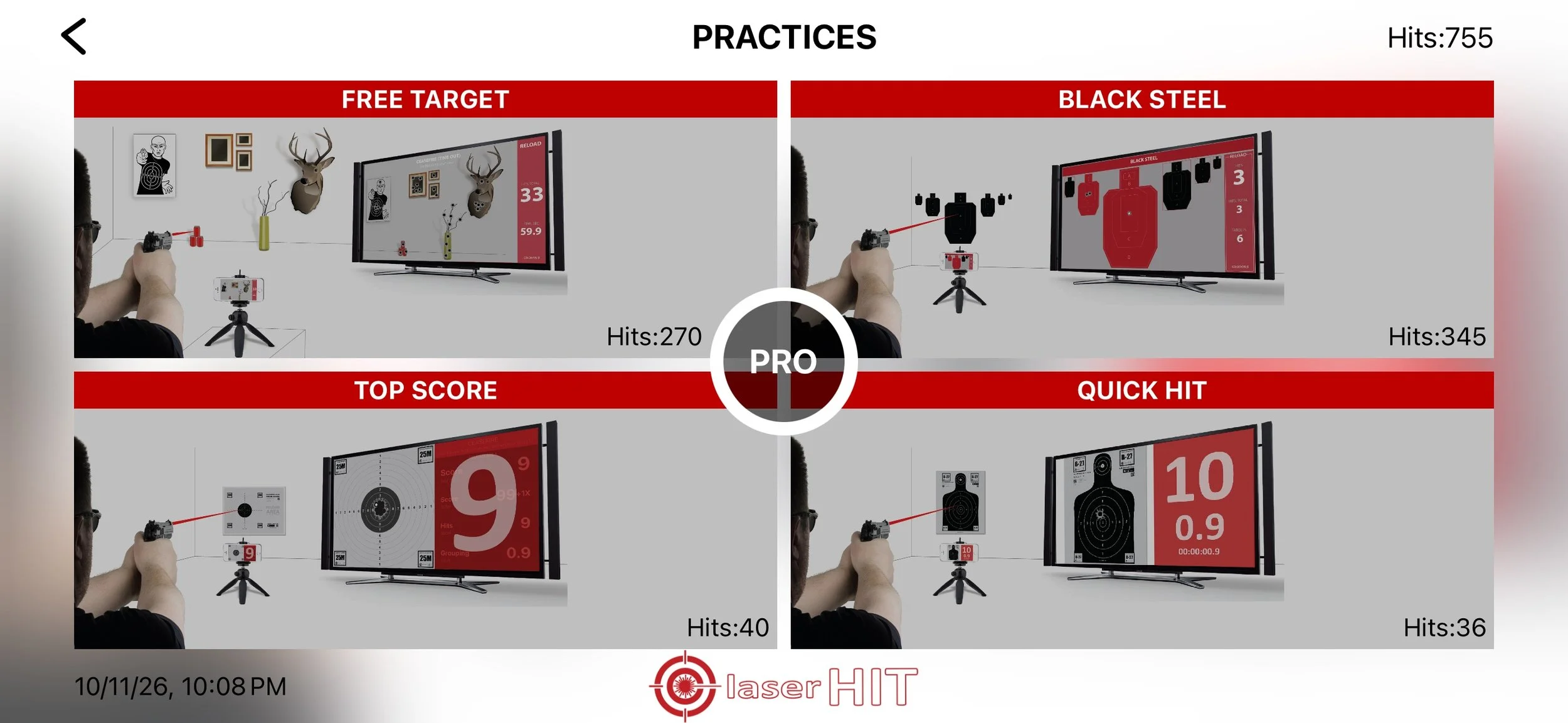
For our example, we're using the Classic LaserHIT App and one of its most flexible Practices:
BLACK STEEL ADVANCED.
And here's some good news: this Practice is free. No in-app purchase is required.
Let's configure it for four students.
FIRING RANGE SETUP
Screen Mirroring: Wireless-X, HDMI cable, or another supported screen-sharing option, such as Apple TV, Roku, or Samsung screen sharing.
Firing Distance: Enter the actual indoor distance from the firing line to the target board. Refer to the table above.
BLACK STEEL ADVANCED automatically recognizes the scaled targets and calculates their recreated distances.
MORE SETTINGS
Measurement Units: Choose inches, centimeters, SMOA, TMOA, MIL, or MRAD.
Target Type: LaserHIT B3
Impact Zoom: OFF (not needed for this group configuration)
Now we're ready to decide what we want our students to work on.
FOUR WAYS TO CHALLENGE YOUR STUDENTS.
The best part of this setup is that you don't need to rearrange the targets every time you change the training objective.
Keep the same four targets, the same phone, and the same firing line.
Just adjust what the LaserHIT App displays.
OPTION A: ZONE ACCURACY
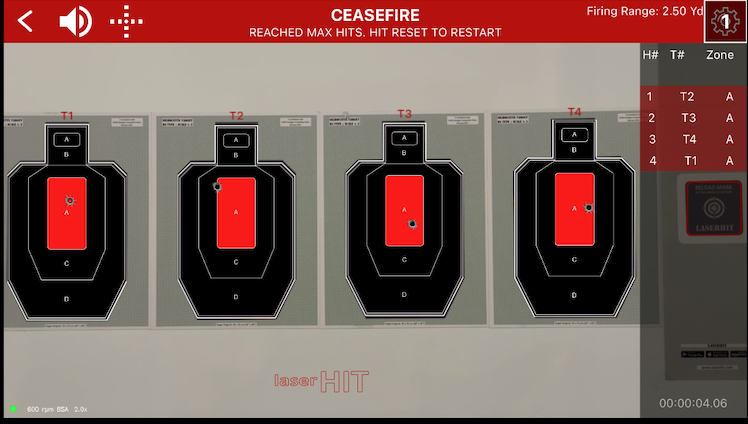
Want to know which scoring zone each student is hitting?
Keep the results simple.
On-Screen Results:
Target Index: SHOW
Hit Zone: SHOW
All Other Options: HIDE
This configuration displays each registered shot with its corresponding target and hit zone.
In our test, four shots were registered across four targets, each identified by its target index and A-zone result.
The instructor can immediately see which assigned target was hit and where the shot landed.
No unnecessary timing or grouping information.
OPTION B: ZONE PRECISION
Now let's take it a little further.
It's not just about hitting the target. How consistently can each student place their shots?
On-Screen Results:
Target Index: SHOW
Hit Zone: SHOW
Group: SHOW
All Other Options: HIDE
This setup adds shot-group information for each target, helping instructors evaluate precision alongside scoring-zone performance.
In our test with 12 registered shots across four targets, the App displayed the shot impacts, their scoring zones, and group measurements.
This makes it possible to review how consistently shots are grouped on each assigned target without confusing the results from different students.
OPTION C: REACTION TIME
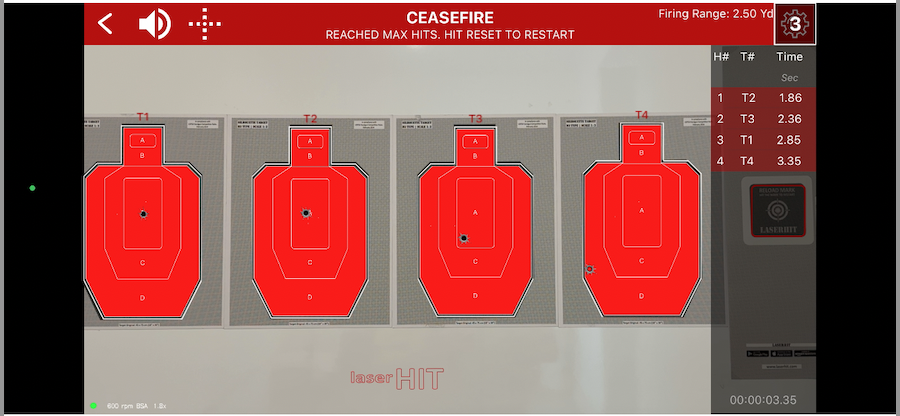
What if your next exercise is about how quickly students can respond?
For this configuration, we're interested in elapsed time rather than displaying hit-zone information.
On-Screen Results:
Target Index: SHOW
Elapsed Time: SHOW
All Other Options: HIDE
With one shot per student, the instructor can compare individual response times to the same starting signal.
Keep the display focused on timing.
OPTION D: ACCURACY AND REACTION TIME
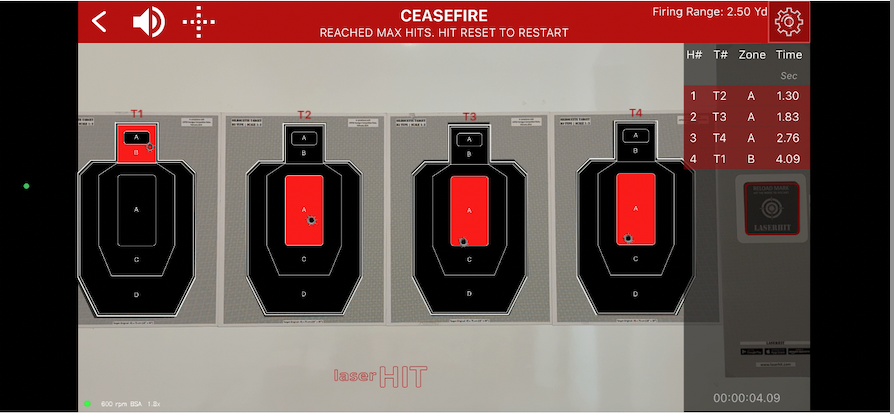
Now let's combine both challenges.
How quickly can your students engage their assigned targets while maintaining accuracy?
On-Screen Results:
Target Index: SHOW
Hit Zone: SHOW
Elapsed Time: SHOW
All Other Options: HIDE
Again, we recommend one shot per student, with Maximum Hits set to 4.
With this configuration, the instructor can review the target identification, scoring zone, and elapsed time for each registered shot.
The result is a straightforward comparison of how quickly each student responded and where the shot landed.
Same four targets. A different training objective.
SHOULD THE VIRTUAL SPOTTER ANNOUNCE EVERY HIT?
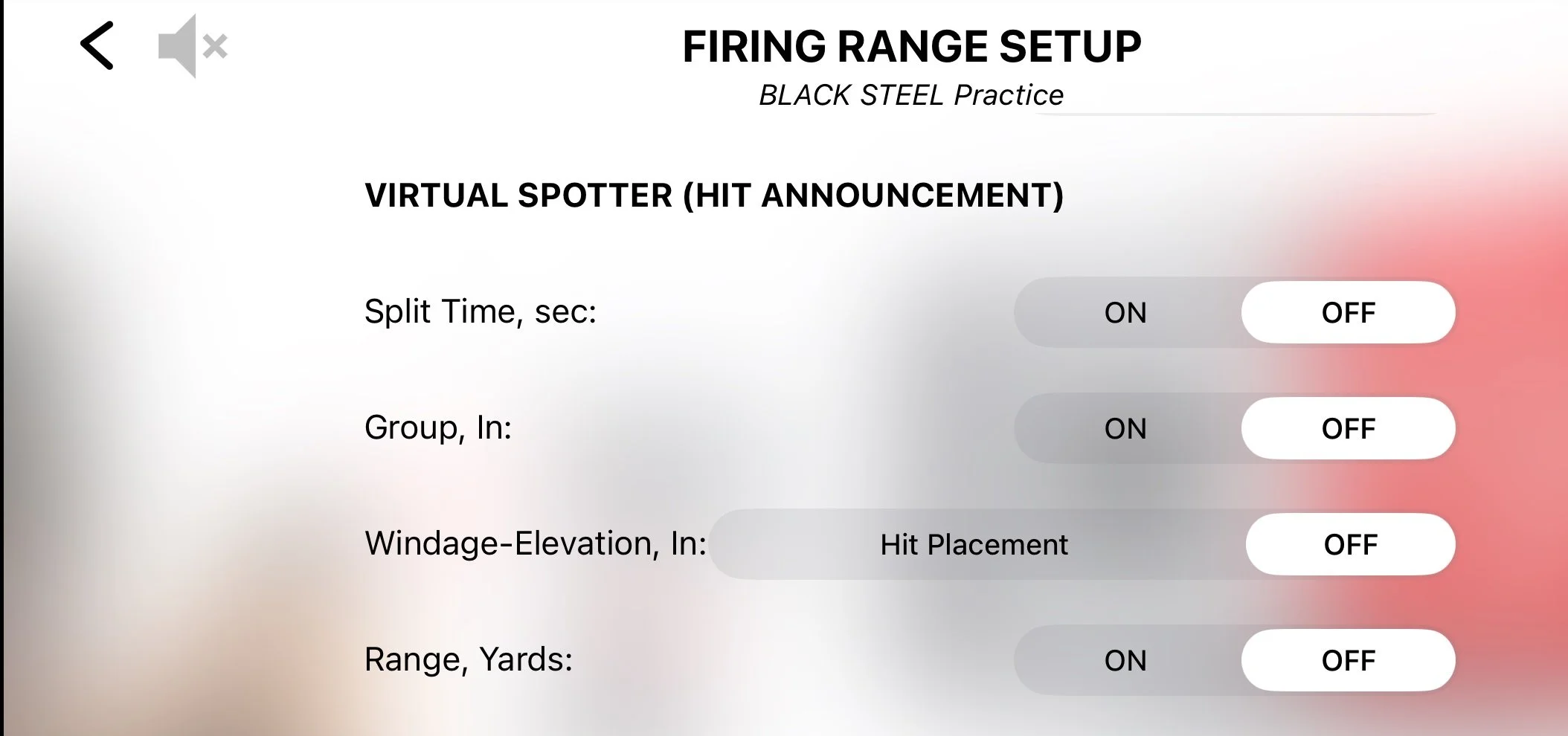
For this group configuration, we recommend turning off individual hit announcements.
With four students sharing one Practice, this keeps the session free from repeated voice announcements.
However, we still want useful information when the Practice ends.
SESSION RESULTS
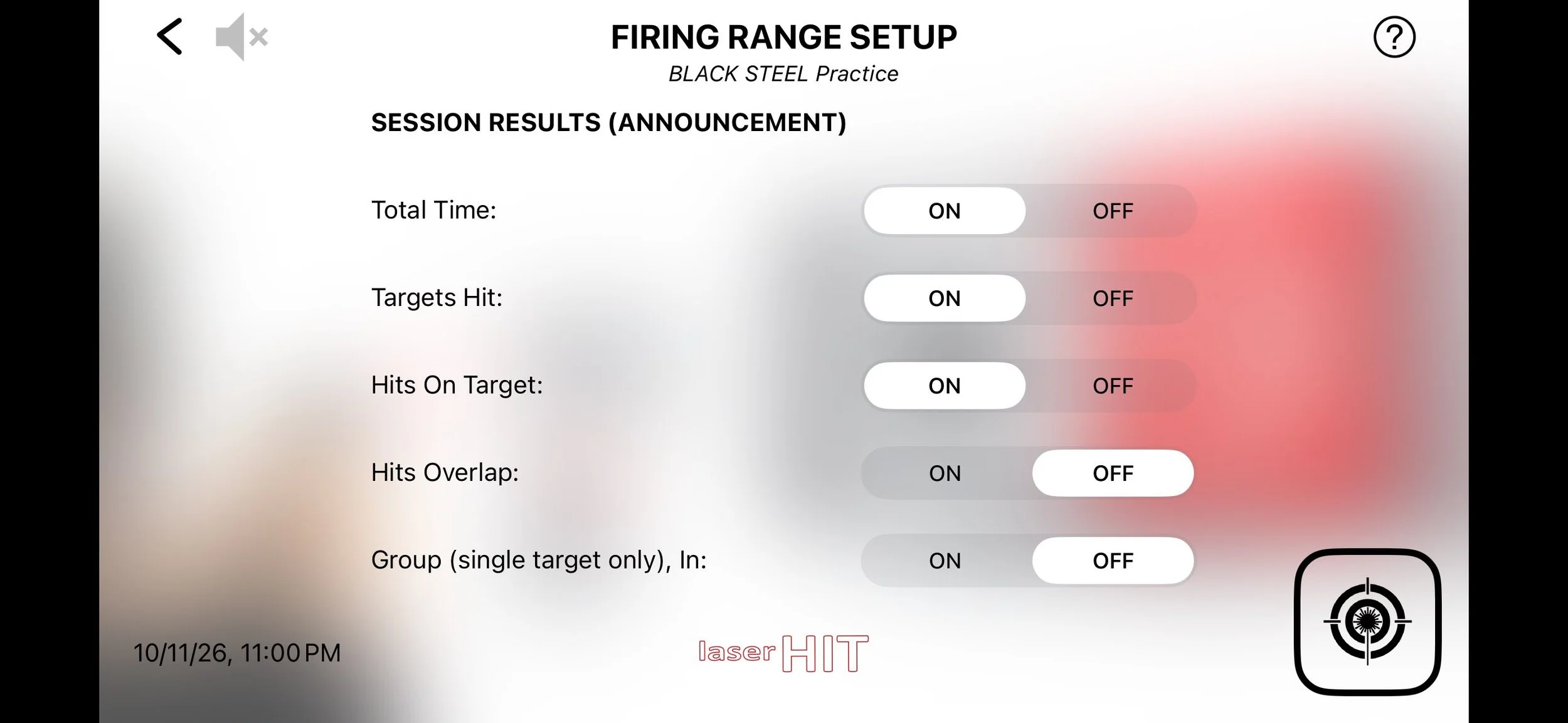
Turn ON:
Total Time
Target Hit
Hits on Target
Now the instructor can review the shared session results without unnecessary interruptions during the exercise.
HOW MANY SHOTS SHOULD YOU SET?
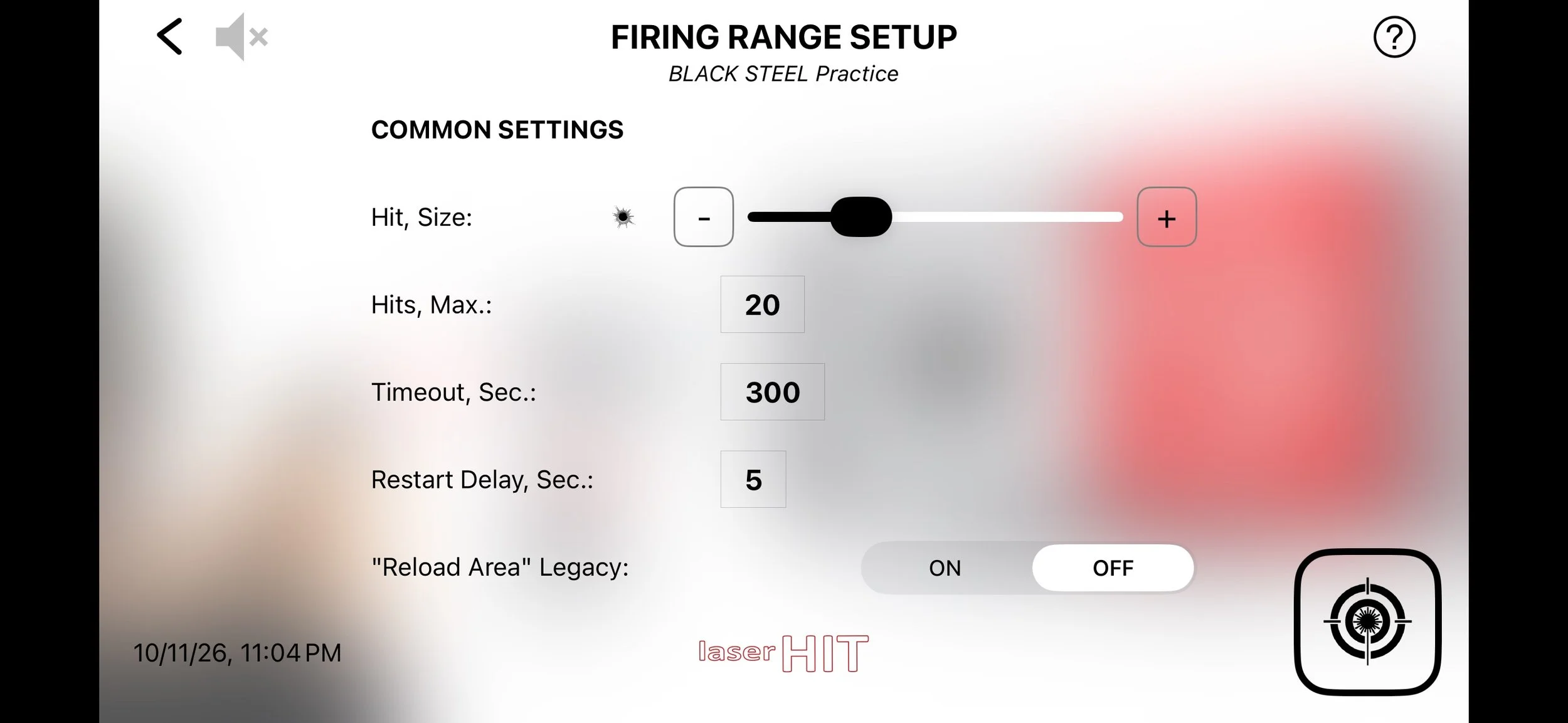
Let's look at the practical numbers.
MAXIMUM HITS: 30
BLACK STEEL ADVANCED allows up to 30 registered hits in this configuration.
For Zone Accuracy and Zone Precision, this allows approximately 2–7 shots per student, depending on how you distribute the total.
Each student is responsible for engaging their assigned target and keeping track of their shots.
For Reaction Time and Accuracy & Reaction Time, we recommend a one-shot-per-student exercise to keep the results easy to interpret.
Set Maximum Hits to 4.
TIMEOUT: 300 SECONDS
For general accuracy and precision exercises, a 300-second timeout gives the instructor time to manage the session.
For reaction-time exercises, consider a shorter timeout, such as 60 seconds or less, depending on your training objective.
BEFORE YOU GO
I hope this long article has demonstrated that training multiple shooters with minimal equipment and setup is possible.
What does it mean for firearms instructors? An opportunity to evaluate the effectiveness of their teaching, confirm students' understanding of firearm handling and aiming fundamentals, and create an interactive training environment where student safety comes first.
For students, it means a positive first experience with firearms, immediate feedback, the opportunity to correct mistakes, and the confidence that they can develop into skilled shooters through safe, interactive practice.
Dry-fire training does not replace supervised live-fire qualification. But it helps instructors identify students' strengths, weaknesses, and areas for improvement before they take their first steps onto a live-fire range.
That's what LaserHIT is here to support.
Planning to use LaserHIT in your firearms training classes? Contact us at info@laserhit.com for help setting up your training environment and personalized recommendations for your instructional or business needs.