Cart 0

WIRELESS MIRRORING

Setup LASERHIT WIRELESS-X for iPhone

Setup LASERHIT WIRELESS-X for Android


THE WIRELESS MIRRORING DEVICES COMPATIBLE WITH LASERHIT APP
devices-chart-01.png

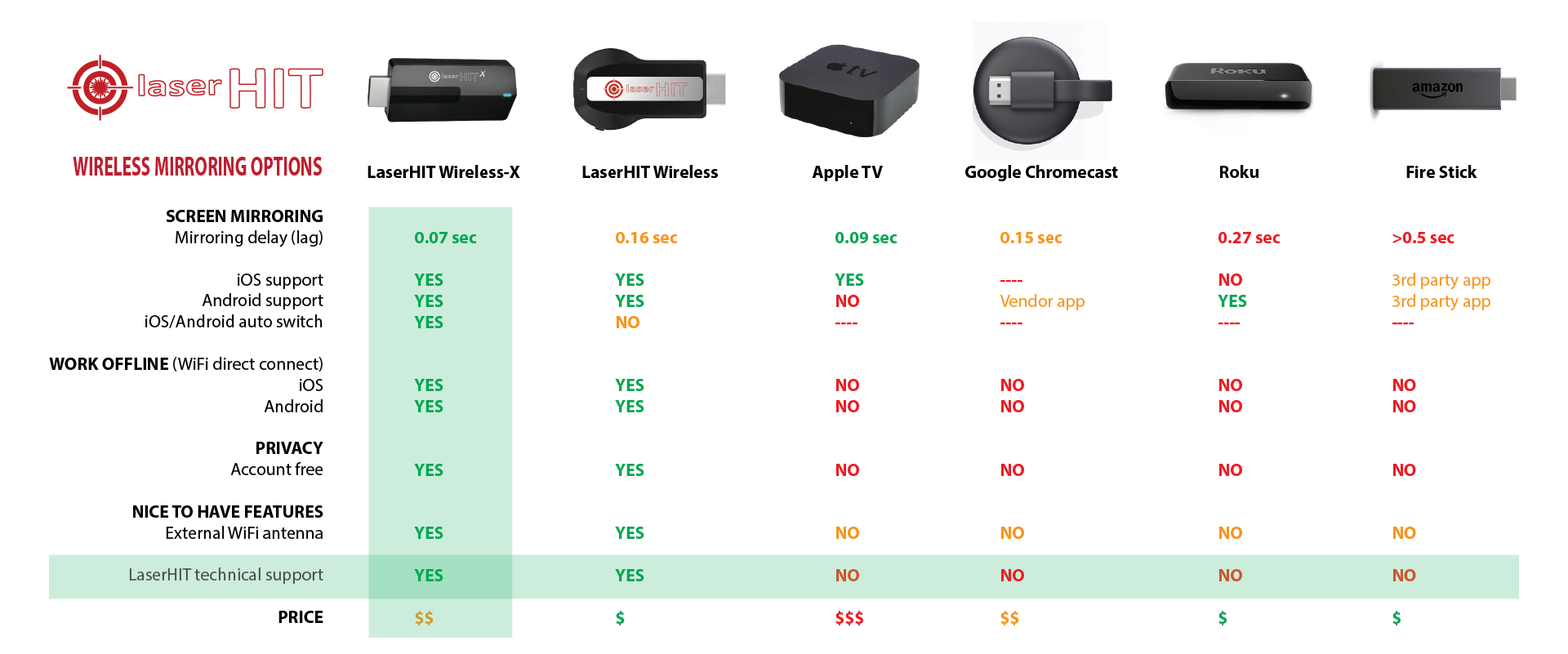
Does the comparison table seem complicated? Let’s review it line-by-line and feature-by-feature to help you to decide what wireless devices will serve your Dry Fire practice the best.

Mirroring delay (the significant factor)

The mirroring delay (lag time) refers to the delay time in updates and synchronization between the phone and the TV screens. Does it important? It depends on the purpose of your training. If you are working on the fundamentals, then the delays become a little bit annoying but don’t affect your training results. If you are practicing the draw from holster/concealment or trying to become the fastest shooter in the world, then you should worry about every fracture of a second. The worst part is the unknown exact delay time. The numbers in the table averaged and provided for reference only. The actual delay time depends on your TV model, the particular phone, and the light conditions and which could be varied.

iOS/Android support

Most of the wireless dongles on the market support single platform only: iOS or Android. All LaserHIT wireless devices are universal and support both iOS and Android.

iOS/Android auto switch

LaserHIT Wireless and LaserHIT Wireless-X support both platforms. The LaserHIT Wireless-X will switch between iOS and Android mode automatically upon connection to your phone. The LaserHIT Wireless requires the manual push of the button on the side of the dongle. Does it important? It depends on your appreciation of the convenience. The LaserHIT Wireless has default preset of iOS or Android mode. Each time the dongle powered up, it will switch to default settings. It could be a difficult task to reach the dongle at the back on the big TV if you need to switch the platform. Pay attention to the default system during the purchase of the LaserHIT Wireless. Or never worry about it with LaserHIT Wireless-X.

Work offline

Both LaserHIT Wireless and LaserHIT Wireless-X have not required an Internet during the Practice. Your phone will stream directly to the TV. Does it important? It depends on your value of privacy. If the mirroring device depends on the Internet to work, it means that all your shooting sessions stream somewhere to the Internet Clouds. Then, it may be available for monitoring by someone else without your knowledge.

Account free

Both LaserHIT Wireless and LaserHIT Wireless-X works out of the box, plug-and-play. All other solutions required to create an account and will not work without internet. They will know who you are, where you live, and how often you were practicing. Does it important? It’s up to you.

External WiFi antenna

The big TV screen between the device and your phone may block the signal and mirroring may become interrupted. Both LaserHIT Wireless and LaserHIT Wireless-X have an external antenna, which could be placed outside the TV screen to provide clear reception. Sometimes it is the only way for reliable mirroring.

LaserHIT technical support

If you have issue with the LaserHIT Wireless or LaserHIT Wireless-X, let us know. Our technical support team will resolve it. We don’t provide support for none LaserHIT products.

In CONCLUSION: There is a variety wireless devices on the market, which are perfectly designed to stream movies from the Internet to your TV screen. The minimum of mirroring delay, the work offline and the privacy of your screen were never under consideration by design. The LaserHIT Wireless and LaserHIT Wireless-X will not stream the movies from the internet for you. Its designed and tuned to work with LaserHIT app to provide the best and secure target practice experience with minimum mirroring delay possible. It is simply the best for the particular job.


F.A.Q.

What is the difference between LaserHIT Wireless and Wireless-X?

The LaserHIT Wireless-X is our latest model with simplified user interface. It works faster, switches automatically between iOS and Android systems, and most important, provides lowest in the class mirroring delay. Check "Mirroring delay" above for details.

If all LaserHIT wireless devices support both iOS and Android, why its listed separately above? What is the difference?

The LaserHIT Wireless and LaserHIT Wireless-X differ by the setup and connecting flow for iOS and Android. Check "iOS/Android auto switch" above for details.

So, the LaserHIT Wireless and Wireless-X will works with all phones?

Both devices work with any iPhones/iPads and with the most of the Android phones. If you have the Android phone and your phone support screen mirroring (Miracast), it will work.

I set this up, and the mirroring delays are enormous. Like, 2-3 sec at least. What can I do?

The common source of the delay (lag) is the special TV feature calls picture "enhancement". Go to your TV settings, find the picture settings options, and disable all "enhancement" by select MONITOR or GAME mode. Depends on the particular TV, this settings option may be set separately for each HDMI input. Check the TV manual for details.

"The mirroring delay depends on the phone and light condition." What do you mean?

The hardware capacity of your phone and light conditions may dramatically affect the LaserHIT app performance. There is a simple dependency to observe: if the RPM (Android) or FPS (iPhone) number are start falling, the mirroring delay will increase. You can find the RPM/FPS number at the bottom left corner while the "live camera view" running on the phone screen. On the low-performance phone or in the low light condition the RPM/FPS number will never reach the maximum; and therefore, the mirroring delay time will newer be the best. NOTE: The numbers provided in the comparison table above measured while PRM/FPS were maximum.

Why do I need screen mirroring at all? Is the phone itself not enough?

The phone itself is enough. The inconvenience problem starts when you step from the target 10 feet away. The phone must stay next to the target to record your hits, not by your side at the firing line. The beautiful big TV, nesting in your living room and doing nothing at your practice time, may become very helpful. Hook it up to your phone with the wireless, and turn the living room into the full-motion shooting range. The best part, you don't need to buy a new TV, utilize what you have already.


SETUP WIRELESS-X for iPhone

Before starting screen mirroring, you should connect your phone to the LASERHIT Wireless-X WiFi. LASERHIT Wireless-X did not use your Home WiFi but created a private WiFi network instead. The network SSID: LaserHIT XXXXXXX, where XXXXXXX is eight random symbols unique to the particular Dongle. You can connect your phone to the Dongle using the LaserHIT app (recommended) or iPhone’s Settings.

INSTALL THE DONGLE

wireless-x-opt1.png
  1. Connect the 3-END CABLE to the WIRELESS-X dongle.

  2. Plug-in the dongle directly into an HDMI port on your TV.

  3. Plug the USB-END to USB port labeled 5V/1A on your TV.

  4. Place the ANTENNA-END of cable at a location not obstructed by TV body.

  5. Turn ON the TV and select the Input to the HDMI port.

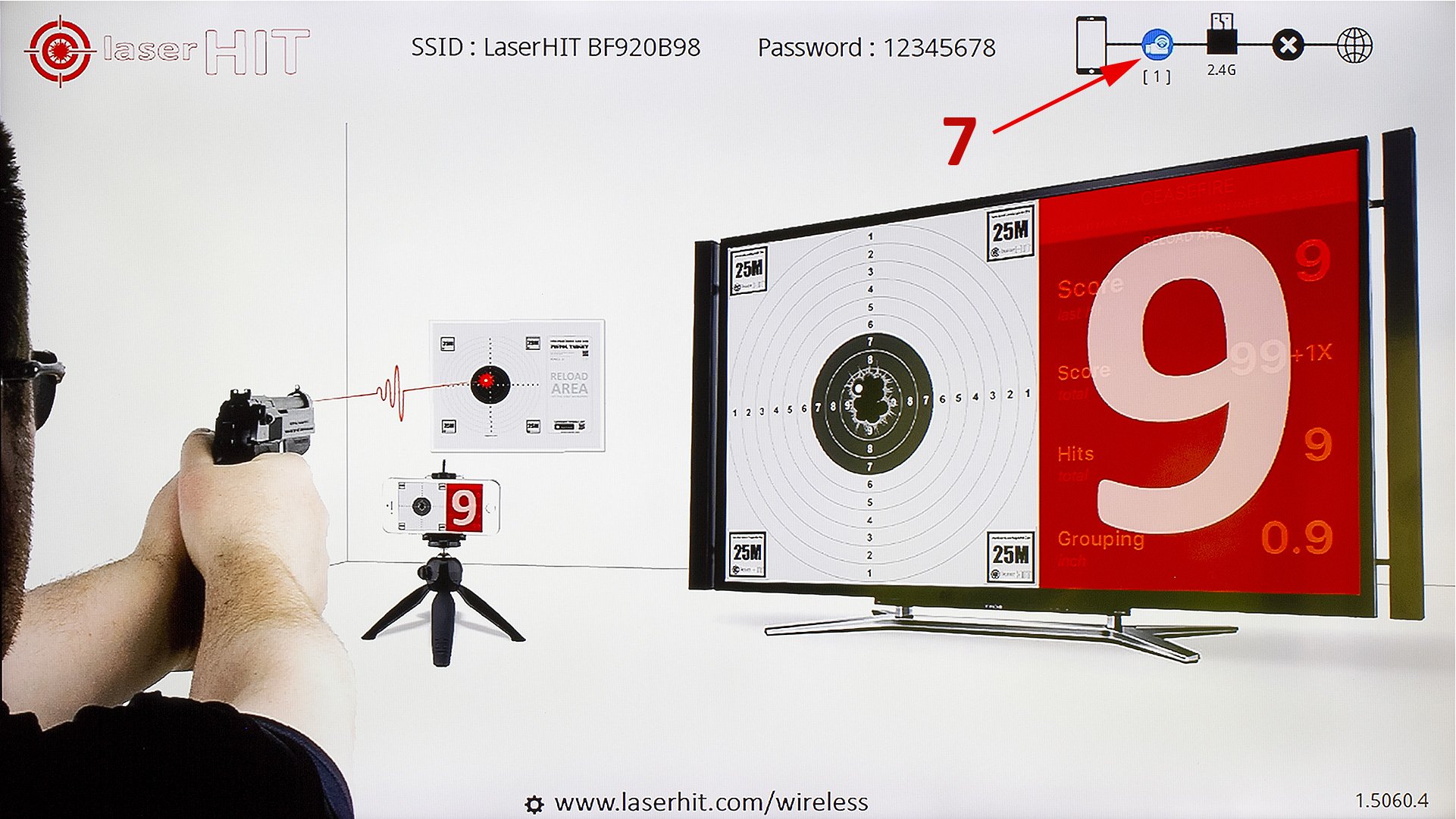
  6. Wait few seconds until dongles' SSID and Password appears on the TV screen (see 1 below).

Warnings:

  1. Make sure the Antenna-End is located as much as possible from TV body, power outlets/adapters, any cables, especially power cable.

  2. If the SSID or Password doesn't appear on the TV screen, or the mirroring picture freeze or pixelates often, consider powering the dongle using an external power adapter instead. See chapter POWER OPTION 2 below.


CONNECT TO THE DONGLE WITH LASERHIT APP

  1. Start the LaserHIT app (Edition 4.2+)

  2. Proceed to a practice FIRING RANGE SETUP screen (See 2 on image above)

  3. Select Screen Mirroring: Wireless-X (See 3 above)

  4. Enter 8 last LaserHIT SSIS’s symbols in the field (See 4 on image above)

  5. Proceed to the next step (See 5 on image above)

  6. The connection icon should appears on your phone (See 6 on image below) and TV screens (See 7 on image below)

Note: Your phone will be connected to the Dongle private WiFi and disconnected from your Home WiFi


MIRRORING iPHONE SCREEN

start-mirroring-wireless-x-iphone.jpg

START MIRRORING

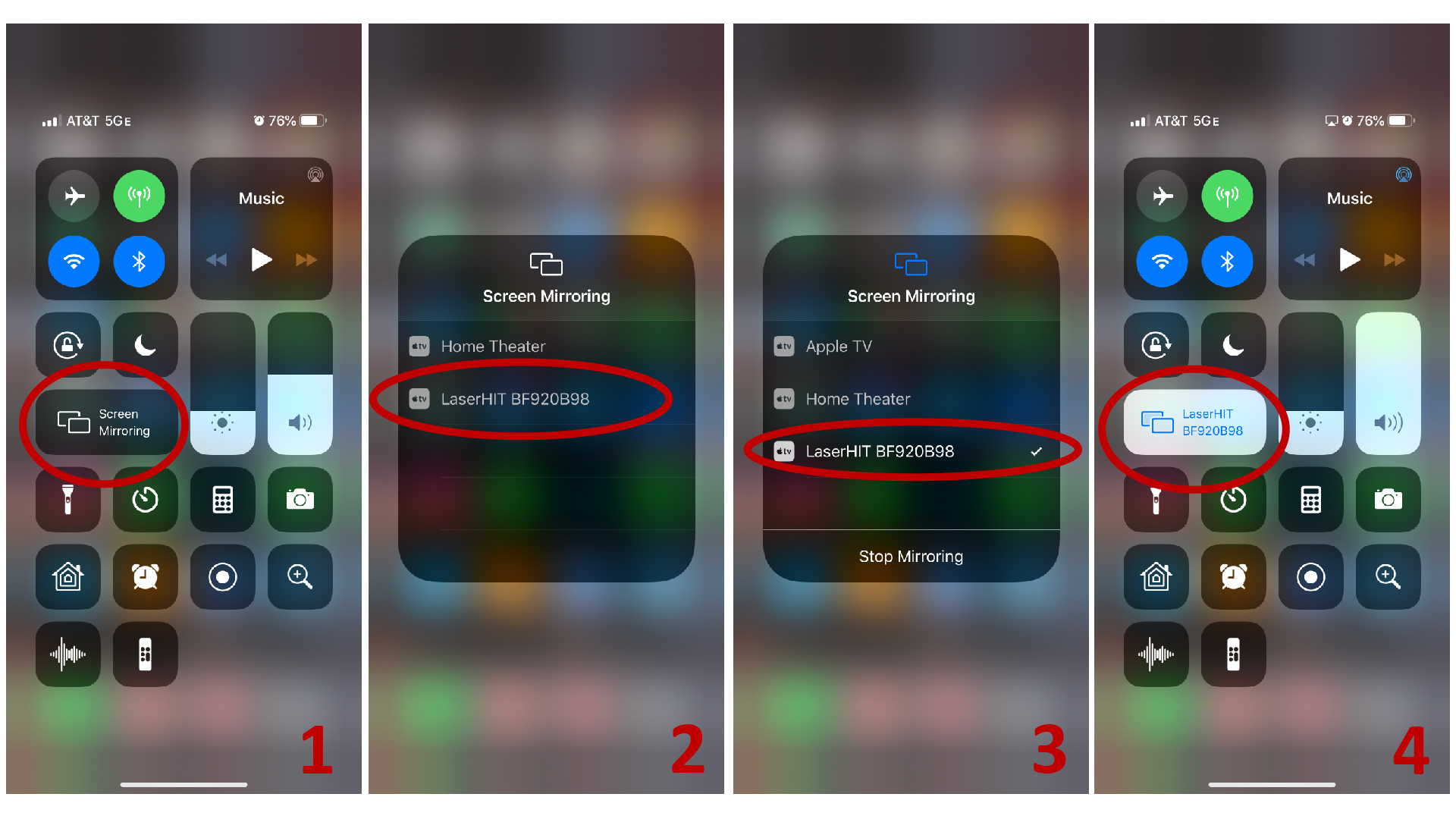
  1. Swipe the iPhone screen to open Control Center.

  2. Tap on Screen Mirroring and select LaserHIT XXXXXXXX.

  3. Wait for the Phone screen appears on your TV.

  4. You are all set. Open LaserHIT app and start practice.

STOP MIRRORING

  1. Swipe-up on the iPhone screen (Swipe-down on iPhone X).

  2. Tap on Screen Mirroring button with LaserHIT XXX label.

  3. Tap on Stop Mirroring.

  4. The iPhone will stop mirroring, disconnect from the Dongle WiFi and reconnect back to your Home WiFi.


POWER OPTION 2. DONGLE POWERED BY POWER ADAPTER

Your TV's USB port may not have a label 5V / 1,000mA and need more power to operate the Wireless-X Dongle reliably. As a result, the SSID or Password may not appear on the TV screen, or the mirroring picture freeze or pixelates often. In that case, you should use a power adapter (Phone charger) to power up the Dongle.

wireless-x-opt2.png
  1. Connect the 3-END CABLE to the WIRELESS-X dongle.

  2. Plug-in the dongle directly into an HDMI port on your TV.

  3. Plug the USB-END to power adapter labeled 5V, 1A.

  4. Plug the power adapter to power outlet.

  5. Place the ANTENNA-END of cable at a location with good WiFi reception.

  6. Turn ON the TV and select the Input to the HDMI port.

  7. Wait few seconds until dongles' SSID and Password appears on the TV screen.


CONNECT TO THE DONGLE USING SETTINGS (THE OLD WAY)

If you use an old version of the LaserHIT app (before Edition 4.2), you can connect to the Dongle using your iPhone's Settings.

  1. Find Dongles’ SSID and Password on the top of the TV screen.

  2. On your iPhone go to Settings -> WiFi -> Choose a Network… and select LaserHIT XXX.

  3. Enter the password.

  4. Verify the phone connected to the dongle (wait for blue check mark appears).

  5. Verify the dongle connected to the phone (wait for blue bubble appears).


SETUP WIRELESS-X HDMI DONGLE
Android


CONNECT THE DONGLE

OPTION 1 - DONGLE POWERED BY TV

hdmi-manual-03.jpg
wireless-x-opt1.png
  1. Connect the 3-END CABLE to the WIRELESS-X dongle.

  2. Plug-in the dongle directly into an HDMI port on your TV.

  3. Plug the USB-END to USB port labeled 5V/1A on your TV.

  4. Place the ANTENNA-END of cable at a location with good WiFi reception.

  5. Turn ON the TV and select the Input to the HDMI port.

  6. Wait few seconds until dongles' SSID and Password appears on the TV screen.

OPTION 2 - DONGLE POWERED BY POWER ADAPTER

hdmi-manual-04.jpg
wireless-x-opt2.png
  1. Connect the 3-END CABLE to the WIRELESS-X dongle.

  2. Plug-in the dongle directly into an HDMI port on your TV.

  3. Plug the USB-END to power adapter labeled 5V, 1A.

  4. Plug the power adapter to power outlet.

  5. Place the ANTENNA-END of cable at a location with good WiFi reception.

  6. Turn ON the TV and select the Input to the HDMI port.

  7. Wait few seconds until dongles' SSID and Password appears on the TV screen.

Warning: Make sure the Antenna-End is located as much as possible from TV body, power outlets/adapters, any cables, especially power cable.


SETUP THE DONGLE

setup-wireless-x-android-hd.jpg

Find Dongle SSID on the top of the TV screen. The password is not necessary for screen mirroring on the Android platform.


START MIRRORING PHONE SCREEN

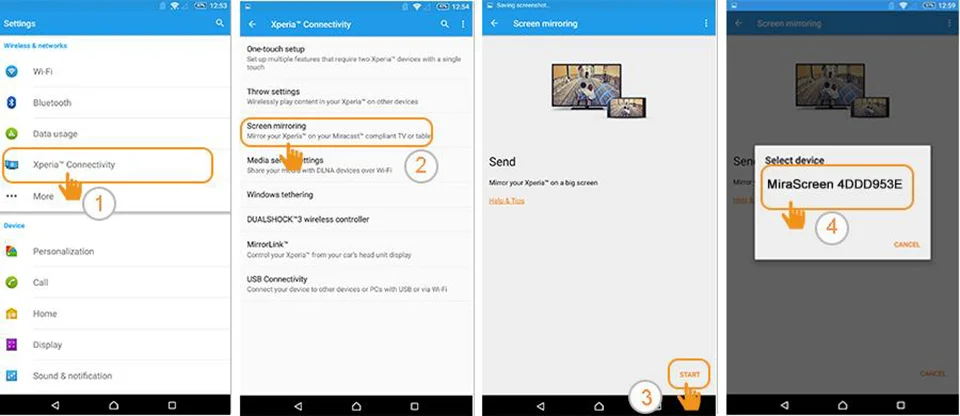
(refer to LaserHIT XXX instead of MiraScreen XXX on the images below)


SAMSUNG

Samsung_S8.jpg

HUAWEI

Huawei_P8.jpg

SONY

Sony.jpg

LGE

LG_.jpg

MOTOROLA

Moto.jpg

HTC

HTC.jpg

ONEPLUS

One_Plus.jpg

MEIZU

Meizu.jpg

LENOVO

Lenovo.jpg

SETUP WIRELESS-X HDMI DONGLE
Android Cast (For Nexus, Pixel, Motorolla, etc.)


CONNECT THE DONGLE

OPTION 1 - DONGLE POWERED BY TV

Do not use this option if your TV does not have USB port labeled 5V/1A. Use OPTION 2 instead.

wireless-x-opt1.png
  1. Connect the 3-END CABLE to the WIRELESS-X dongle.

  2. Plug-in the dongle directly into an HDMI port on your TV.

  3. Plug the USB-END to USB port labeled 5V/1A on your TV.

  4. Place the ANTENNA-END of cable at a location with good WiFi reception.

  5. Turn ON the TV and select the Input to the HDMI port.

  6. Wait few seconds until dongles' SSID and Password appears on the TV screen.

OPTION 2 - DONGLE POWERED BY POWER ADAPTER

Use your phone power adapter to power up the dongle. The power adapter must be labeled 5V/1A (or more).

wireless-x-opt2.png
  1. Connect the 3-END CABLE to the WIRELESS-X dongle.

  2. Plug-in the dongle directly into an HDMI port on your TV.

  3. Plug the USB-END to power adapter labeled 5V, 1A.

  4. Plug the power adapter to power outlet.

  5. Place the ANTENNA-END of cable at a location with good WiFi reception.

  6. Turn ON the TV and select the Input to the HDMI port.

  7. Wait few seconds until dongles' SSID and Password appears on the TV screen.

Warning: Make sure the Antenna-End is located as much as possible from TV body, power outlets/adapters, any cables, especially power cable.


SETUP THE DONGLE

Step 1 - Find the Dongle SSID (1) and Password (2) on the top of the TV screen.

setup-wireless-x-android-hd.jpg

Step 2 - Connect the Phone to the Dongle (Settings > Network & Internet > Wi-Fi > The Dongle SSID)

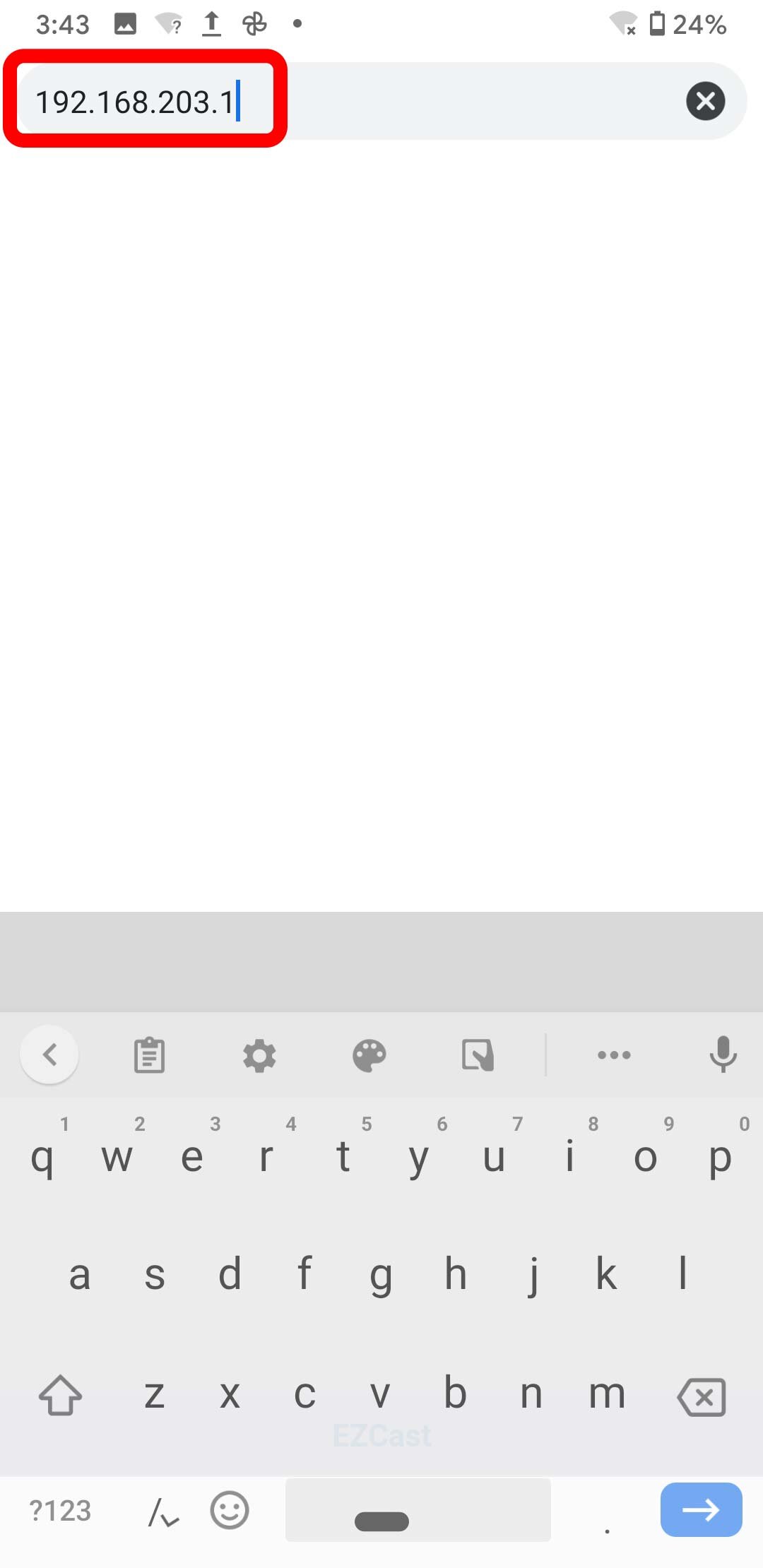
Step 3 - Connect the Dongle to the Internet (Chrome > 192.168.203.1 > Internet > Your Home WiFi 2.4GHz)


CAST THE PHONE SCREEN


SETUP WIRELESS-X HDMI DONGLE

Android Compatible Mode


CONNECT THE DONGLE

OPTION 1 - DONGLE POWERED BY TV

Do not use this option if your TV does not have USB port labeled 5V/1A. Use OPTION 2 instead.

wireless-x-opt1.png
  1. Connect the 3-END CABLE to the WIRELESS-X dongle.

  2. Plug-in the dongle directly into an HDMI port on your TV.

  3. Plug the USB-END to USB port labeled 5V/1A on your TV.

  4. Place the ANTENNA-END of cable at a location with good WiFi reception.

  5. Turn ON the TV and select the Input to the HDMI port.

  6. Wait few seconds until dongles' SSID and Password appears on the TV screen.

OPTION 2 - DONGLE POWERED BY POWER ADAPTER

Use your phone power adapter to power up the dongle. The power adapter must be labeled 5V/1A (or more).

wireless-x-opt2.png
  1. Connect the 3-END CABLE to the WIRELESS-X dongle.

  2. Plug-in the dongle directly into an HDMI port on your TV.

  3. Plug the USB-END to power adapter labeled 5V, 1A.

  4. Plug the power adapter to power outlet.

  5. Place the ANTENNA-END of cable at a location with good WiFi reception.

  6. Turn ON the TV and select the Input to the HDMI port.

  7. Wait few seconds until dongles' SSID and Password appears on the TV screen.

Warning: Make sure the Antenna-End is located as much as possible from TV body, power outlets/adapters, any cables, especially power cable.


SETUP THE DONGLE

Step 1 - Find the Dongle SSID (1) and Password (2) on the top of the TV screen.

setup-wireless-x-android-hd.jpg

Step 2 - Connect the Phone to the Dongle (Settings > Network & Internet > Wi-Fi > The Dongle SSID)

Step 3 - Enable Compatible Mode


SETUP WIRELESS-X HDMI DONGLE

Android Compatible Mode

SETUP WIRELESS HDMI DONGLE
Android


CONNECT THE DONGLE

dongle-hd.jpg
  1. Connect dual-cable to the dongle
  2. Plug-in the dongle directly into an HDMI port on your TV
  3. *Connect the cable's USB-end to a USB adaptor (5V, 1A).
  4. Place the "WIFI" end of cable at a location with good WiFi reception.
  5. Set your TV's Input to HDMI port where is the dongle connected.
  6. The dongle will display setup instructions on your TV-screen.

* NOTES:

  • You can plug the USB end to USB port on your TV if it labeled 5V, 1A.
  • Plug USB into to unlabeled ports may damage the dongle or TV itself.
  • You may be disconnected from Internet during a mirroring.
  • LaserHIT app will unable display setup hints when off line.
  • Do not connect to the dongle during 1st run LaserHIT app.
  • Stop mirroring if you need online help (?) during a practice.

SETUP THE DONGLE

setup-the-dongle-android-01.png
  1. Press the button on the dongle.
  2. Wait a few seconds until dongle changes to Miracast.
  3. Wait a few seconds until dongle get ready.

START MIRRORING PHONE SCREEN


SAMSUNG

Samsung_S8.jpg

HUAWEI

Huawei_P8.jpg

SONY

Sony.jpg

LGE

LG_.jpg

MOTOROLA

Moto.jpg

HTC

HTC.jpg

ONEPLUS

One_Plus.jpg

MEIZU

Meizu.jpg

LENOVO

Lenovo.jpg

SETUP WIRELESS HDMI DONGLE
iPhone


CONNECT THE DONGLE

dongle-hd.jpg
  1. Connect dual-cable to the dongle
  2. Plug-in the dongle directly into an HDMI port on your TV
  3. *Connect the cable's USB-end to a USB adaptor (5V, 1A).
  4. Place the "WIFI" end of cable at a location with good WiFi reception.
  5. Set your TV's Input to HDMI port where is the dongle connected.
  6. The dongle will display setup instructions on your TV-screen.

* NOTES:

  • You can plug the USB end to USB port on your TV if it labeled 5V, 1A.
  • Plug USB into to unlabeled ports may damage the dongle or TV itself.
  • You may be disconnected from Internet during a mirroring.
  • LaserHIT app will unable display setup hints when offline.
  • Do not connect to the dongle during 1st run LaserHIT app.
  • Stop mirroring if you need online help (?) during a practice.

SETUP THE DONGLE (1st time)

setup-the-dongle-01.png
  1. Make sure the dongle in AirPlay mode (or push the button on dongle).
  2. Find Dongle SSID and Password on the top panel of your TV screen.
  3. On your iPhone go to Settings -> WiFi -> Choose a Network.
  4. Select Mirascreen XXX (see step 2).
  5. Enter the password (see step 2).
  6. Verify the phone connected to the dongle.

MIRRORING iPHONE SCREEN

start-mirroring-iphone.png

START MIRRORING iPHONE SCREEN

  1. Swipe-up on the iPhone screen (Swipe-down on iPhone X) to open short-cut settings.
  2. Tap on Screen Mirroring and select Mirascreen XXX.
  3. Wait for the Phone screen appears on your TV.
  4. You are all set. Open LaserHIT app and start practice.

STOP MIRRORING

  1. Swipe-up on the iPhone screen (Swipe-down on iPhone X).
  2. Tap on Mirascreen XXX.
  3. Tap on Stop Mirroring.