Cart 0

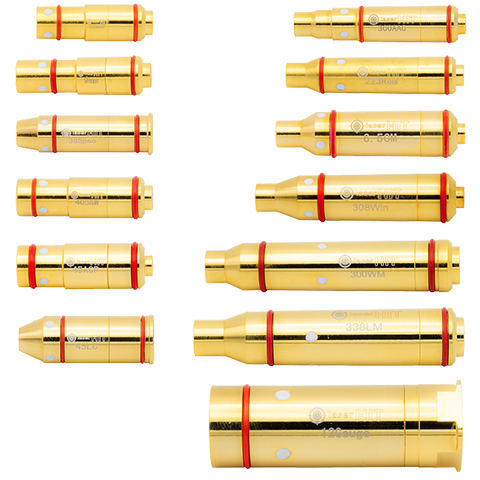
Select your cartridge type

The selection will affect your training. Watch the videos to find the difference.

PERFORMANCE. The app's performance depends on the phone's hardware and battery settings. If the app appears laggy, irresponsive, or missing hits, close all running apps except the LaserHIT, ensure the phone battery is charged at least 50%, disable the battery save mode (Phone Settings > Battery > Save mode OFF, or High performance ON), and keep the phone on a charger during the practice.

OTHER cartridge types

DISCLAIMER. If your phone doesn't support a LASERHIT HD cartridge, you can purchase a LASERHIT GENERIC cartridge here... or use other options listed below.

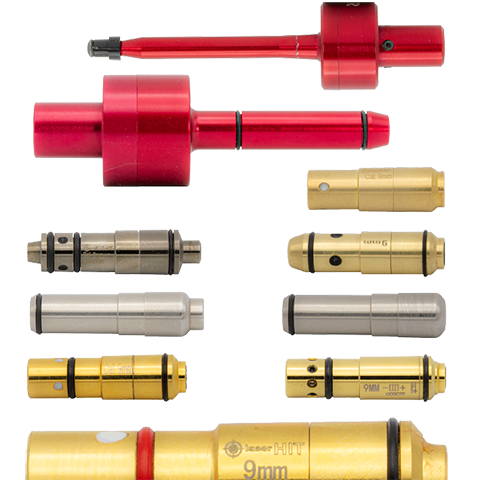
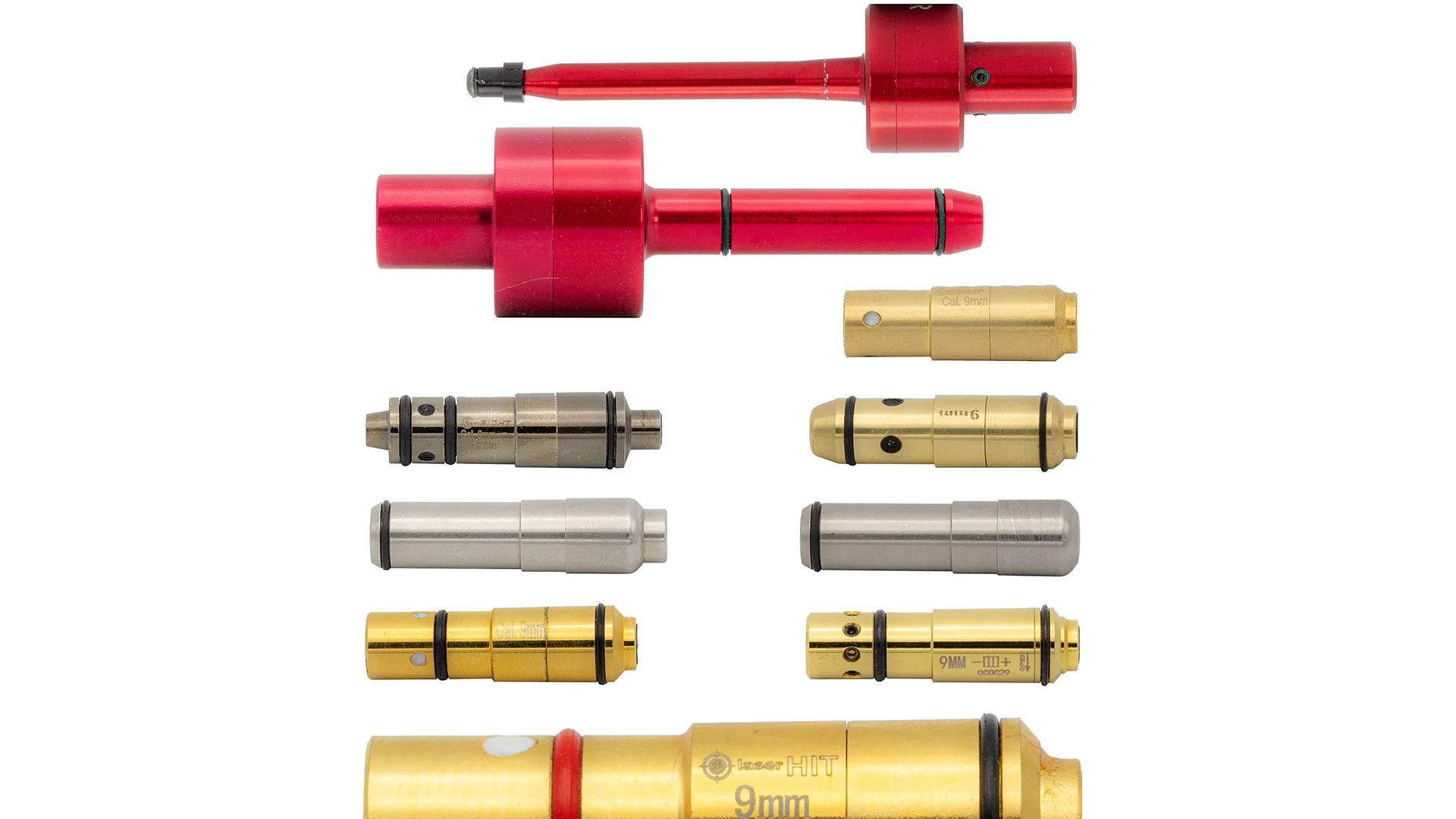
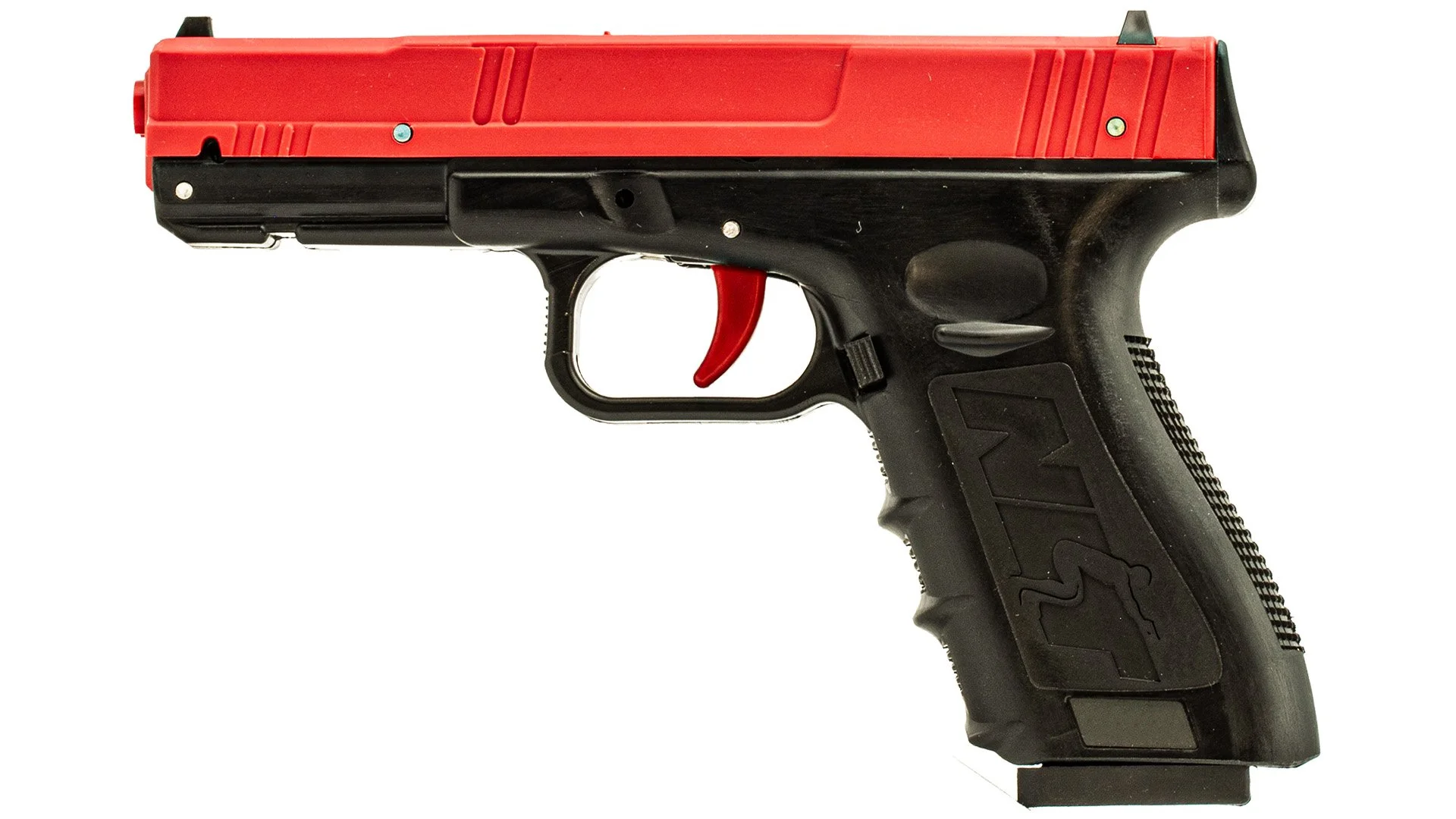
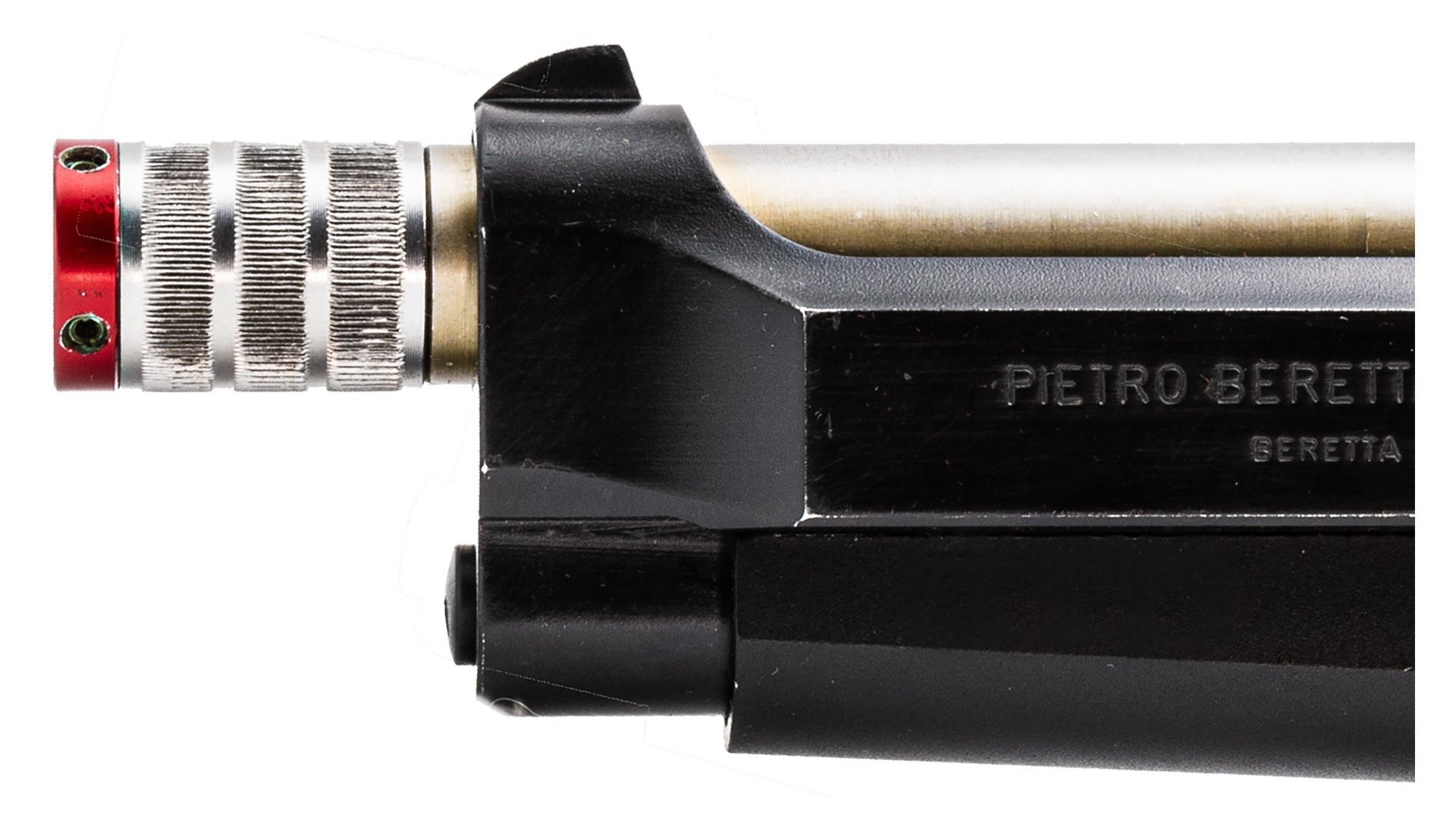
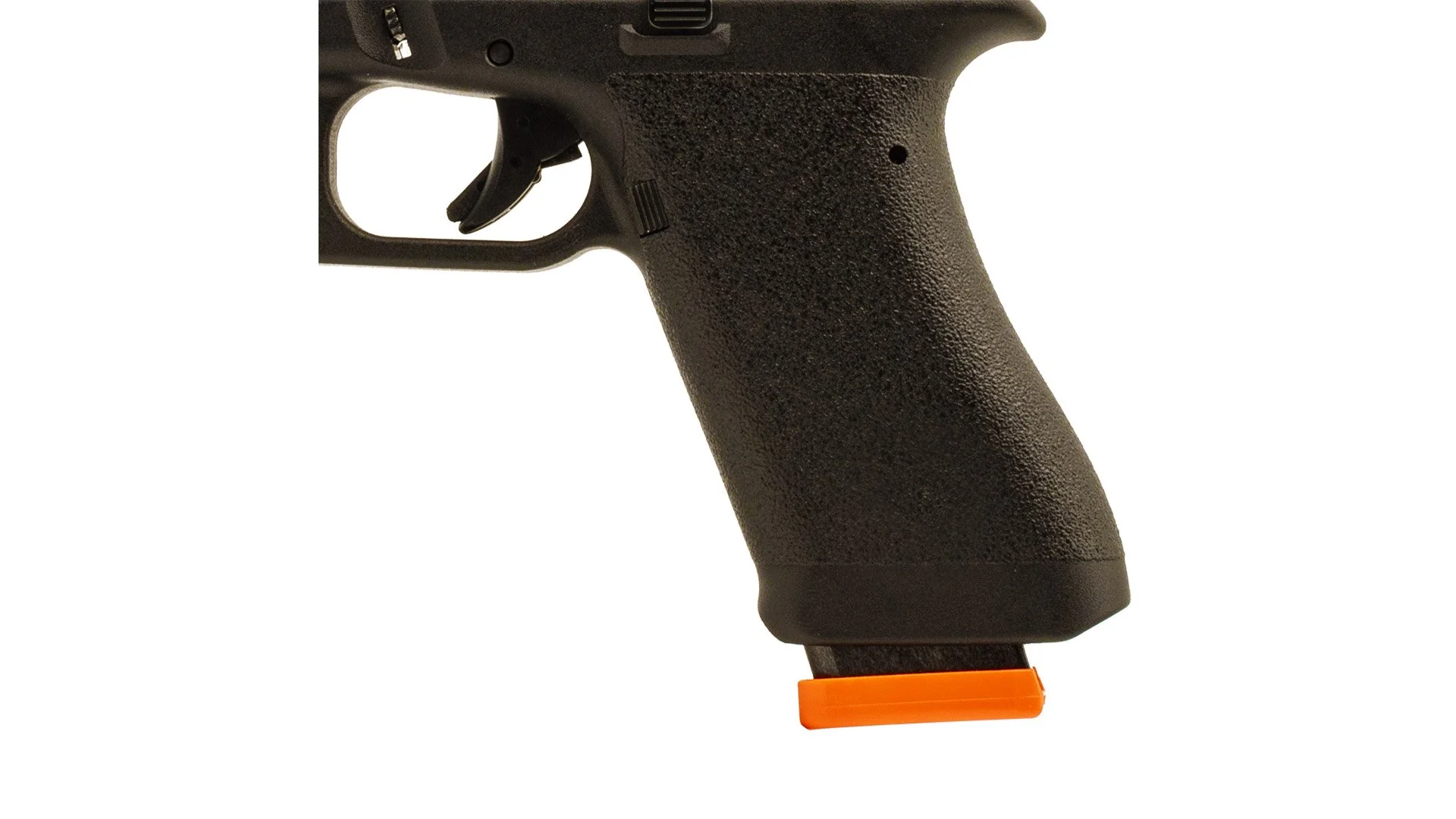
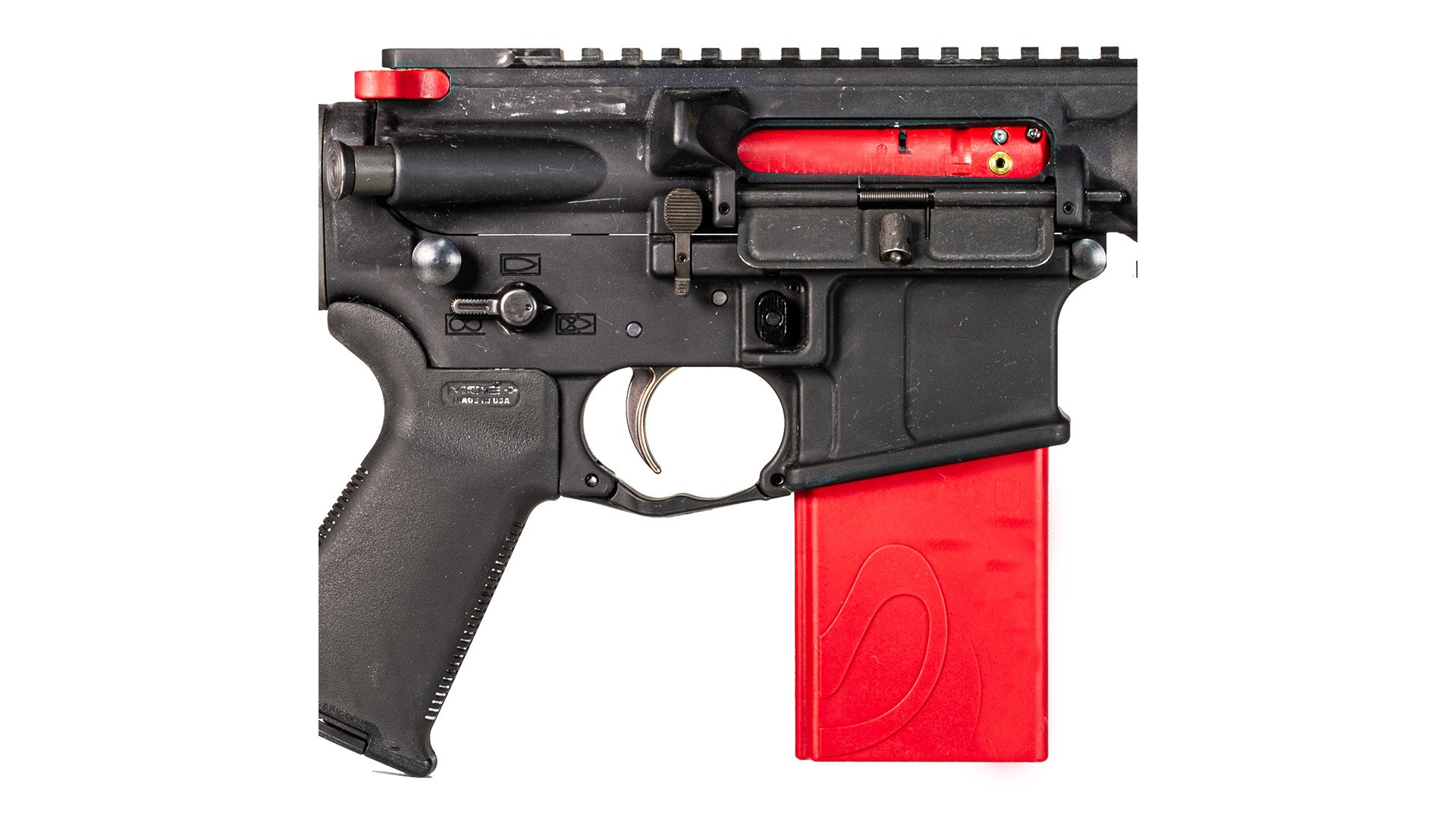
LaserHIT isn't affiliated with any of the products listed below. We don't provide names, links, descriptions, reviews, or opinions on the products' accuracy, performance, or usability. However, we bought, tested, and tuned the LASERHIT app to work with them at the best performance rate possible. If you find yours in the picture below, it should work. Tap on the images to watch the LASERHIT app in action.

GENERIC TYPE (LASERHIT or COMMON)

LASER TRAINER TYPE

NLT TYPE

CFT TYPE

DFM TYPE

MBB TYPE

PERFORMANCE. The app's performance depends on the phone's hardware and battery settings. If the app appears laggy, irresponsive, or missing hits, close all running apps except the LaserHIT, ensure the phone battery is charged at least 50%, disable the battery save mode (Phone Settings > Battery > Save mode OFF, or High performance ON), and keep the phone on a charger during the practice.

LEGACY PHONE BUTTON. If you have an outdated phone and PERFORMANCE hints don't help, tap the LEGACY PHONE button to turn off advanced camera features. You will lose the extended zoom feature and advanced light control, but the app should work better.

Choose laser cartridge for your gun

LaserHIT HD

generic-hd-01.png

Tiny laser dot gives you realistic feelings: you will focus on sights, not on the laser spark. Good for advanced shooters.

LaserHIT GENERIC and OTHERS

generic-hd-2-01.png

Bright red dot gives you immediate visual feedback: you will correct the aiming errors on the fly. Good for the beginners.


LaserHIT HD

generic-hd-5-01.png

HD cartridge gives you perfect dot for precise accuracy. See your results as it is.

LaserHIT GENERIC and OTHERS

generic-hd-4-01.png

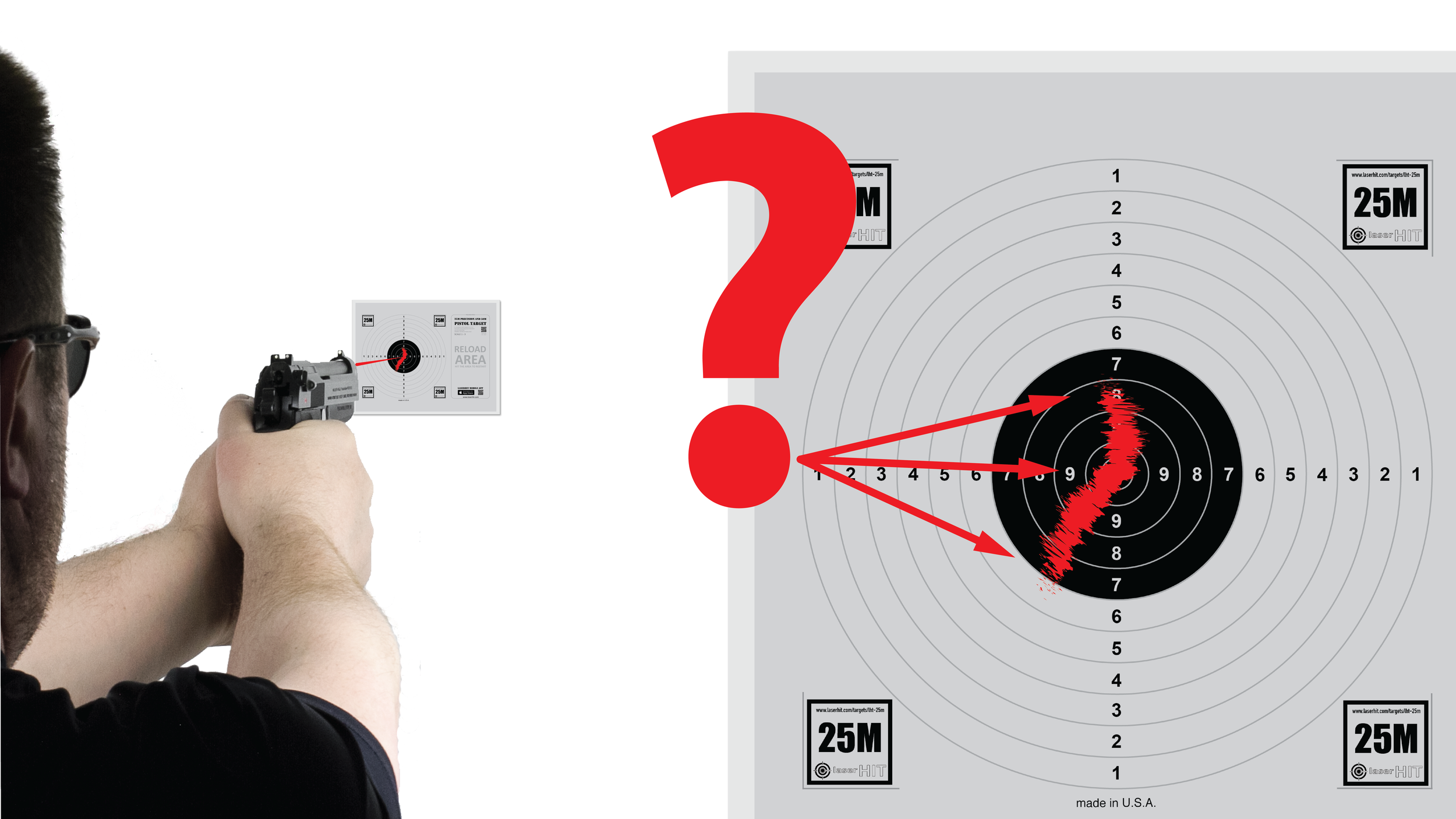
GENERIC cartridge gives you the dot with the tale. Work on your trigger control to make the tails shorter. 


LaserHIT HD Pros:

generic-hd-6-01.png

300,000 hits or 3 years with 1 battery set

LaserHIT GENERIC and OTHERS Cons:

generic-hd-7-01.png

Up to 3,000 hits with 1 battery set (in ideal conditions)


LaserHIT HD/GENERIC 2021 Edition Pros:

generic-hd-8-01.png

Works with any type of firearms: bolt action, semi-auto, or any revolvers.

OTHER GENERIC Cons:

generic-hd-9-01.png

Works with most semi-auto firearms and some revolvers. It doesn't works with bolt action rifles.


To check if your smartphone support required features, run the LaserHIT mobile app and look on main screen

android2hd-1+.png

You phone has advanced camera features and you can practice with either HD (High Definition) or GENERIC LaserHIT cartridges

android2g-1+.png

Your phone has locked camera features and you can practice with LaserHIT GENERIC cartridge (or any other cartridge on the market).


Ballistics Chart Import

HORNADY - HOW TO CREATE SPREADSHEET

  1. Tap on Next. The online Ballistics Calculator will open in your browser.

  2. Select either 4DOF or BC Calculator.

  3. Configure your bullet and rifle parameters.\n4. Set the mandatory values before calculation:

    1. - Environment > Wind Speed 10 MPH, Wind Angle 90°

    2. - Measurements > Results in inches or cm, Max Range: 1000 yd.

  4. Tap Calculate.

  5. Tap Download Spreadsheet > Download.

  6. In Safari address bar > Page Menu icon (left side) > Downloads > trajectory file.

  7. Tap Share > Save to Files > Downloads > Save > Close > Clear.

  8. Return to F-Class Laser Academy App.

HORNADY - HOW TO CREATE CHART

  1. Tap on Next. The GeoBallistics App will open on the App Store.

  2. Install GeoBallistics and proceed with Open.

  3. Create a Ballistics Chart (see user manual for details).

  4. Set the mandatory values before calculation:\n- Solution Rounding = 0.01, Solution Units = inches,\n- Wind Direction = 90°, Wind Speed 1 = 10 mph or m/s

  5. On the Chart screen, tap Share (orange export icon).

  6. Export to Photos (image) or as CSV. If CSV, choose Save to Files > Downloads or email to yourself and save in Downloads.

  7. Return to the F-Class App and proceed with Import.

HORNADY IMPORT - HOW TO IMPORT SPREADSHEET

  1. Tap Next to open File Picker.

  2. Choose Recents or Browse > Downloads.

  3. Select trajectory.csv exported from Hornady.com.

  4. Wait until processing completes and Next appears.

  5. Review processed data for errors.

  6. Tap Next to finalize import.

  7. Confirm Range Units (Standard).

  8. Preset appears in My Ballistic Presets as trajectory.csv.

  9. Tap the preset to review, edit, and assign to a firearm image."

GEOBALLISTICS - HOW TO IMPORT CHART FROM PHOTOS

  1. Tap Import, then Next, then select Import from Photos.

  2. Go to Photos, select the GeoBallistics image, then tap Choose.

  3. Review results and confirm that ELEV and WIND are in inches or cm, then tap Next.

  4. In Ballistic Units, enter Sight Height (inches), then tap Back.

  5. The imported preset will appear in My Ballistic Presets. Tap Review & Edit.

GEOBALLISTICS - HOW TO IMPORT CHART FROM FILES

  1. Tap Import, then Next, then select Import from Files.

  2. Choose On My Phone, then navigate to Downloads, Recents or Browse.

  3. Select the GeoBallistics CSV file.

  4. Review results, then tap Next.

  5. In Ballistic Units, enter Sight Height (inches), then tap Back.

  6. The imported preset will appear in My Ballistic Presets. Tap Review & Edit.


Trajectory Import

Trajectory Import - How does it work?

LaserHIT values your trust in leading ballistics calculators on the market. We currently support GeoBallistics chart imports and are compatible with the Hornady ballistic calculator. Additional compatibility with other ballistics calculators is expected in the future.

Importing Your DOPE Card Data

Follow these instructions to import your DOPE card data. Once the import is complete, you can customize your firearm and ammunition profile by selecting the newly created preset and tapping Review & Edit.

Note: You also have the option to manually input your DOPE card data from field observations by entering drop and drift information manually.

  1. Select an existing firearm profile and duplicate it.

  2. Open the duplicated profile by selecting Review & Edit.

  3. Customize all necessary fields as needed.

  4. Tap Trajectory to adjust the target position by moving it left-right and up-down to review and edit the drop and drift points.

Option 1: Import to Photos with GeoBallistics App

  1. Tap the Ballistic Calculator link at the top of the LaserHIT screen to access the GeoBallistics App.

  2. Download GeoBallistics or open the existing app on your phone.

  3. Create a profile for your rifle and ammunition, or select an existing profile from My Rifles.

    • Confirm your range distance limits.

    • Specify the shot angle in degrees.

    • Leave the wind direction and speed at default (10 mph/kmh at 90°).

    • Confirm the rifle sight height in inches or centimeters.

    • Note: Weather data is currently not applicable.

  4. In GeoBallistics, tap Chart to review the DOPE card.

  5. Tap the Export icon, select Export to Photos, and tap OK.

  6. Return to the LaserHIT app Trajectory Import screen.

  7. Tap Import and select the DOPE chart image from Photos.

  8. Tap Choose, confirm that all rifle data (highlighted in red) imported correctly, and tap the back arrow.

  9. Specify the sight height as a mandatory step. To switch to centimeters, change the range units to meters (Wheel icon).

  10. Tap your newly created firearm profile to view the DOPE card or select Review & Edit.

Option 2: Import to Files with Hornady Ballistic Calculator

  1. Tap the Ballistic Calculator link at the top of the LaserHIT screen to access the Hornady ballistic calculator.

  2. Select 4DOF under "Choose Calculator."

  3. Create a profile for your firearm and ammunition. Use default settings in the Display Fields section.

  4. Calculate the ballistic profile and select Download spreadsheet as a .csv file to Files on your phone.

IMPORTANT:

  • Confirm your range distance limits.

  • Specify the shot angle in degrees.

  • Leave the wind direction and speed at default (10 mph/kmh at 90°).

  • Confirm the rifle sight height in inches or centimeters.

  • Note: Weather data is currently not applicable.

  1. Return to the LaserHIT app Trajectory Import screen.

  2. Tap Import and select the DOPE chart .csv file from Files (it should be the first file in Recents).

  3. Confirm that all rifle data (highlighted in red) imported correctly, and tap the back arrow.

  4. Specify the sight height as a mandatory step. To switch to centimeters, change the range units to meters.

  5. Return to the Ballistic Presets screen. Tap your newly created firearm profile to view the DOPE card or select Review & Edit.

Option 3: Import as Copy-Paste with Hornady Ballistic Calculator

  1. Tap the Ballistic Calculator link at the top of the LaserHIT screen to access the Hornady ballistic calculator.

  2. Select Standard under "Choose Calculator."

  3. Create a profile for your firearm and ammunition. Refer to the "IMPORTANT" section above and use default settings in the Display Fields section.

  4. Calculate the ballistic profile and select Copy results.

  5. Return to the LaserHIT app Trajectory Import screen.

  6. Tap Import, and the LaserHIT app will prompt you with an "Allow Paste" message. Confirm your permission.

  7. Navigate to the Ballistic Presets screen. Tap your newly created firearm profile to view the DOPE card or select Review & Edit.

Last Hint: While you review and edit your newly created firearm preset, explore the firearm imaging list by tapping on the download icon on the left side of the preset name.

Voice Reports

Leaderboards


What Are LaserHIT Leaderboards

LaserHIT Leaderboards use Apple Game Center to let you compare your results with other LaserHIT users in a secure and private way.

Leaderboards are available for selected competitive LaserHIT Drills and for LaserHIT QuickHit Practice (Legacy). They show how your performance ranks globally or among friends while keeping your personal data protected.

How It Works

When Apple Game Center is enabled on your device, you are automatically signed in using your Apple ID. No separate LaserHIT account is required, and your Apple ID is not shared with LaserHIT.

Results from supported competitive Drills are sent in real time to Apple Game Center, where they are validated and ranked. LaserHIT then displays those rankings inside the app as:

  • Global rankings with all players

  • Friends-only rankings

Game Center shows your rank, top scores, and relative position based on your Game Center profile settings. Only the information you choose to display in Game Center is visible to others.

Why Game Center Is Required

LaserHIT competitive events use official ranked leaderboards. Apple Game Center provides verified user identity, secure score validation, tamper-resistant rankings, and consistent results across Apple devices.

Without Game Center enabled:

  • Competitive scores cannot be submitted

  • Rankings cannot be calculated

  • Leaderboards cannot be displayed

For this reason, Game Center is required for all LaserHIT competitive modes.

Friends and Rankings

Friends lists are managed entirely by Apple Game Center. Friends you add through Game Center automatically appear in LaserHIT leaderboards when applicable. LaserHIT does not access, store, or manage your contacts in any way.

LaserHIT Performance Dashboard

In addition to Game Center rankings, LaserHIT saves your recent stage results and competition progress directly on your device after each stage completion.

This allows you to:

  • Review recent performance details

  • Track improvement over time

  • Compare current results to past stages

All performance data is stored locally and remains under your control.

Availability and Access

Leaderboards are available for selected LaserHIT preset Drills and for LaserHIT QuickHit Practice (Legacy). You can clearly see whether a Drill supports competitive ranking before starting.

One of the following in-app purchases is required for leaderboard participation:

  • QuickHit one-time purchase

  • LaserHIT Pro Access (24-hour or 30-day)

How Competition Stages Work

All competitive stages follow a consistent structure:

  • Ten single shots per stage

  • Automatic shot repeat

  • Random start timer

  • Clearly defined success and scoring rules

LaserHIT does not attempt to copy any discipline exactly. Instead, it takes inspiration from USPSA, IPSC, IDPA, and Cowboy Action shooting to create universal training stages focused on speed, accuracy, and consistency.

Supported Targets

Currently supported targets:

  • LaserHIT 25M Olympic-style target

  • LaserHIT B27 silhouette target

Additional targets will be added based on user feedback.

Competition Styles Available Now

Practical Shooting

Inspired by USPSA and IPSC scoring.

  • Focus on speed and precision

  • Ranking based on Hit Factor

  • Hit Factor equals total score divided by total time

  • Misses or early shots score zero

Higher Hit Factor places you higher on the leaderboard.

Practical Defense

Inspired by IDPA-style scoring.

  • Focus on precision under stress

  • Ranking based on Final Time

  • Final Time equals shooting time plus penalties

Penalty rules:

  • Each point down adds 0.5 seconds

  • A miss adds 5 seconds

  • An early shot adds 10 seconds

The lowest Final Time wins.

Fast Draw

Inspired by Fast 10 (WFDA and CFDA).

  • Pure speed challenge

  • Precision matters only enough to hit the target

  • Time measured to hundredths of a second

Fastest clean hit wins.